
How to Merge PDF Files Without Uploading Them
You don't have to hand contracts or invoices to an unknown server to combine them. Merge PDFs with Mac Preview or the free qpdf tool, learn how to check whether a web tool uploads files, and see what merging can break: passwords, bookmarks, forms and signatures.
 Keyur
5 min read

On this page
Contracts, invoices and client briefs often carry names, prices and terms you’d rather not hand to an unknown server. You can merge PDF files without uploading them, using software already on your computer or a tool that processes files inside your browser. This guide covers both, explains how to check where a file actually goes, and lists what merging can lose along the way.
Short answer: on a Mac, drag pages between documents in Preview’s thumbnail sidebar. On any system, the free command-line tool qpdf merges files locally with qpdf --empty --pages a.pdf b.pdf -- merged.pdf. If you use a web tool, confirm it processes files in the browser by watching request sizes in your browser’s developer tools while you merge.
Uploading versus processing locally
An upload-based PDF site sends your file to its server, merges it there and sends the result back. A browser-local tool downloads its own code once and then does the work inside the open tab. Desktop software and command-line tools work entirely on your machine.
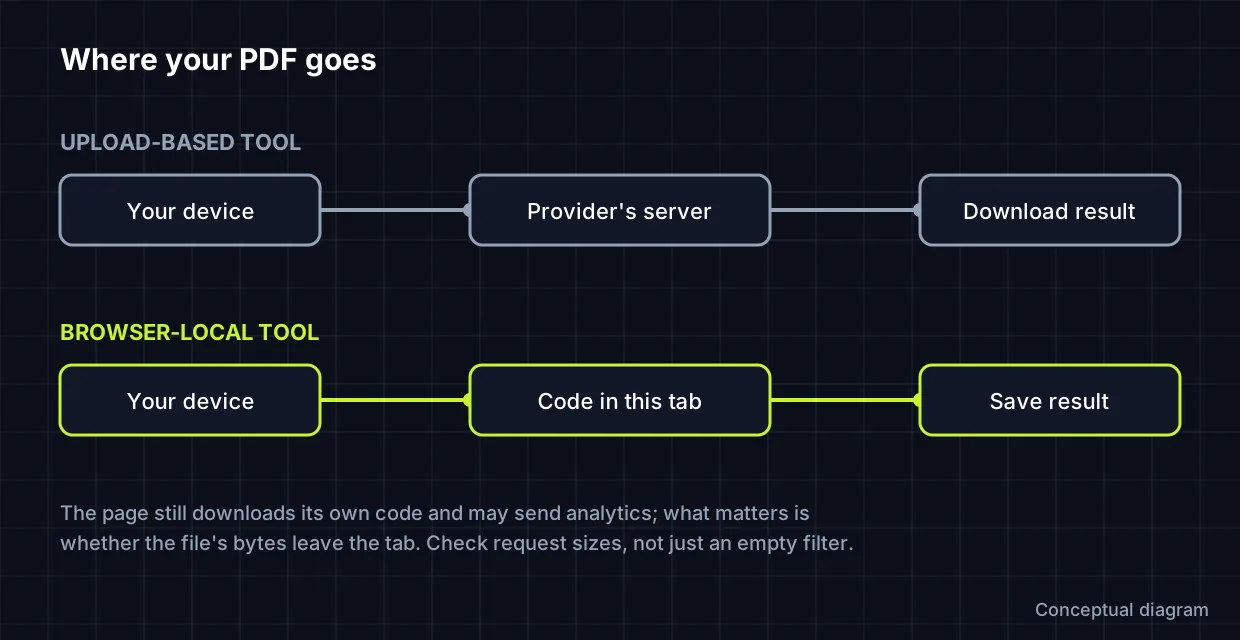
Local processing reduces how many systems see your file. It isn’t the same as offline use (the page may still need a connection to load), and it doesn’t guarantee confidentiality: browser extensions, a compromised device or a cloud-synced Downloads folder can all expose files. Treat it as one sensible precaution, not a security promise.
Merge PDFs on a Mac with Preview
- In Finder, duplicate the main PDF (File → Duplicate). Preview saves edits automatically, so this keeps your original intact.
- Open the copy and the other PDFs in Preview.
- In each window, choose View → Thumbnails.
- Drag thumbnails from one document’s sidebar into the other’s. Command-click to select several pages. Drop them between pages or at the end.
- To add a whole PDF, drag its file icon from Finder into the sidebar.
- Drag thumbnails to fix the order, then close the window to save.
These steps follow Apple’s guide to combining PDFs in Preview.
Merge PDFs on any system with qpdf
qpdf is a free, open-source command-line program for Windows, macOS and Linux. It restructures PDFs without re-rendering them, so pages aren’t rasterised. Install it from your package manager (for example brew install qpdf on macOS or sudo apt install qpdf on Debian/Ubuntu), then:
# Merge whole files in order
qpdf --empty --pages proposal.pdf terms.pdf invoice.pdf -- merged.pdf

# Take only some pages from each file
qpdf --empty --pages proposal.pdf 1-3 terms.pdf 2 -- merged.pdf

# A password-protected input: give the password after its filename
qpdf --empty --pages proposal.pdf terms.pdf --password=YOUR-PASSWORD -- merged.pdf
The -- ends the page list. The syntax above is from the qpdf manual, which also documents page ranges such as z for the last page. These commands were checked with qpdf 11.9.0 on sample PDFs; an encrypted input without its password stops with an “invalid password” error.
How to check that a web tool doesn’t upload your file
A privacy notice is a claim; your browser can check it. This takes two minutes in Chrome, Edge or Firefox:
- Open the tool page, then open developer tools (F12, or Cmd+Option+I on a Mac) and select the Network tab.
- Clear the log, then add your PDFs and run the merge.
- Sort the requests by Size or look at the request method. An upload shows as a
POSTorPUTrequest roughly as large as your files. - Small requests to analytics or font services are normal and don’t contain your file. A request carrying megabytes when your files total megabytes is the warning sign.
Don’t rely on an empty list with a filter applied: filters such as “Fetch/XHR” hide some request types. Check with the filter set to All.
What merging can lose
| Feature | What usually happens | What to do |
|---|---|---|
| Password protection | Many tools refuse encrypted files. qpdf accepts a password per input. | Unlock with the password you’re entitled to, merge, then re-protect if needed. |
| Bookmarks (outlines) | qpdf keeps document-level data from its primary input; other files’ bookmarks may be dropped. | Rebuild bookmarks in a PDF editor after merging, or keep critical documents separate. |
| Fillable form fields | Fields with the same name in two files can clash or stop working. | Fill and flatten forms before merging, or test the merged form. |
| Digital signatures | Modifying a signed PDF invalidates the signature. | Never merge signed documents you need to remain verifiable; send them separately. |
| Links | Links to other pages within the same file usually survive; cross-file links don’t. | Check links after merging. |
Troubleshooting
- “File is encrypted” or a password prompt: the owner has protected it. Use the password, or ask the sender for an unprotected copy.
- The merge fails on one file: it may be damaged. Open it in a PDF viewer and use Print → Save as PDF to make a clean copy, then try again (this can rasterise some content).
- Pages appear rotated: the source pages carry rotation settings. Fix them before or after merging; see our guide to reordering and rotating pages.
- The browser tab crashes: very large files exhaust memory, especially on phones. Merge on a computer or use qpdf.
FAQs
Is a browser-based PDF merger safe for confidential documents?
One that genuinely processes in the browser exposes your file to fewer systems than an upload service. Verify that behaviour yourself, and remember your own device and extensions still matter.
Does Windows have a built-in way to merge PDFs?
Windows doesn’t include a dedicated PDF merge feature. qpdf works on Windows, as do desktop PDF editors.
Will merging reduce quality?
Tools that copy pages, such as Preview’s thumbnail method and qpdf, don’t re-render content. Print-to-PDF workarounds can rasterise pages, so avoid them unless you need to repair a file.
Can I merge PDFs on an iPhone?
Yes, through apps or browser tools, but large files are more likely to fail on phones because of memory limits. For long documents, use a computer.
For how WPDesignVault’s own tools handle what you enter, see how our tools process your data.
Merge PDFs in your browser with WPDesignVault
To combine confidential proposals, invoices or contracts without uploading them, use our Merge PDF tool. It runs 100% locally in your browser using pdf-lib, lets you reorder files with arrow keys, and downloads your merged document instantly.
Related free tools for this topic
Merge PDF Files Online (Free, No Uploads)
Combine multiple PDF documents into a single file directly in your browser. Reorder pages, keep your files private,…
Images to PDF Converter (JPG, PNG, WebP to PDF)
Turn screenshots, mockups, and loose images into one organized, properly sized PDF. Choose A4, US Letter, or fit…
Organise PDF: Reorder, Rotate & Extract Pages (Free)
Rearrange, rotate, delete or extract specific pages from any PDF document in your browser. Use visual page controls…
PDF to Images (JPG & PNG Converter)
Convert PDF pages into crisp PNG or JPEG images in your browser. Choose resolution scale (1× to 3×)…
SVG Optimiser for Web & Elementor (Clean viewBox & currentColor)
Shrink SVG icons, preserve the viewBox, remove fixed dimensions, and make vectors adapt to Elementor colours using currentColor.…
Aspect Ratio Calculator
Find the aspect ratio of any width and height, and calculate a new width or height that keeps…
Related resources

SaaS hero with dashboard preview
Two-column hero: headline, supporting text, two buttons and a trust line beside a visual panel. Stacks to one…
Centred SaaS hero with product window
Centred hero with a large headline, supporting text and two buttons, with optional highlights and a product window…

Dark studio hero with service highlights
Centred hero with a large headline, supporting text and two buttons, with optional highlights and a product window…
More guides

Reorder, Rotate and Extract PDF Pages
Reordering, rotating, extracting and splitting each change a PDF differently. This guide explains when to use each, how to do it in…

How to Read and Fix JSON Syntax Errors
JSON looks simple until a single misplaced comma breaks an import, an API request or a configuration file. The good news is…

Regex for Web Developers: 15 Patterns You Will Actually Use
Regex examples for web developers: regular expression patterns for common tasks, each explained and ready to try in a regex tester.
Comments