
Reorder, Rotate and Extract PDF Pages
Reordering, rotating, extracting and splitting each change a PDF differently. This guide explains when to use each, how to do it in Mac Preview or with qpdf on any system, and gives a tested page-range cheat sheet with text equivalents.
 Keyur
4 min read

On this page
A scanned contract with two pages upside down, a proposal with the pricing page in the wrong place, a 40-page report when the client needs only pages 12 to 15: these are four different jobs. Reordering, rotating, extracting and splitting each change a PDF in a different way, and picking the right one avoids redoing work. This guide explains each action and gives you a page-range cheat sheet you can reuse.
Short answer: to reorder PDF pages, drag page thumbnails into a new order and save a copy. To rotate, select the pages and turn them 90° at a time. To extract, create a new file from a page range such as 12-15. To split, break one file into several, for example one file per page or per chapter.
Four actions, four results
| Action | What it changes | Result | Typical use |
|---|---|---|---|
| Reorder | Page sequence | One file, same pages, new order | Move pricing before terms |
| Rotate | Page orientation | One file, same order | Fix sideways or upside-down scans |
| Extract | Which pages are kept | One new file with selected pages; original unchanged | Send only the relevant section |
| Split | Number of files | Several files covering the original | One file per invoice or chapter |
Deleting pages is a fifth, related action: it’s an extract of everything except the pages you remove. Always work on a copy, because some apps save changes automatically.
Page ranges explained
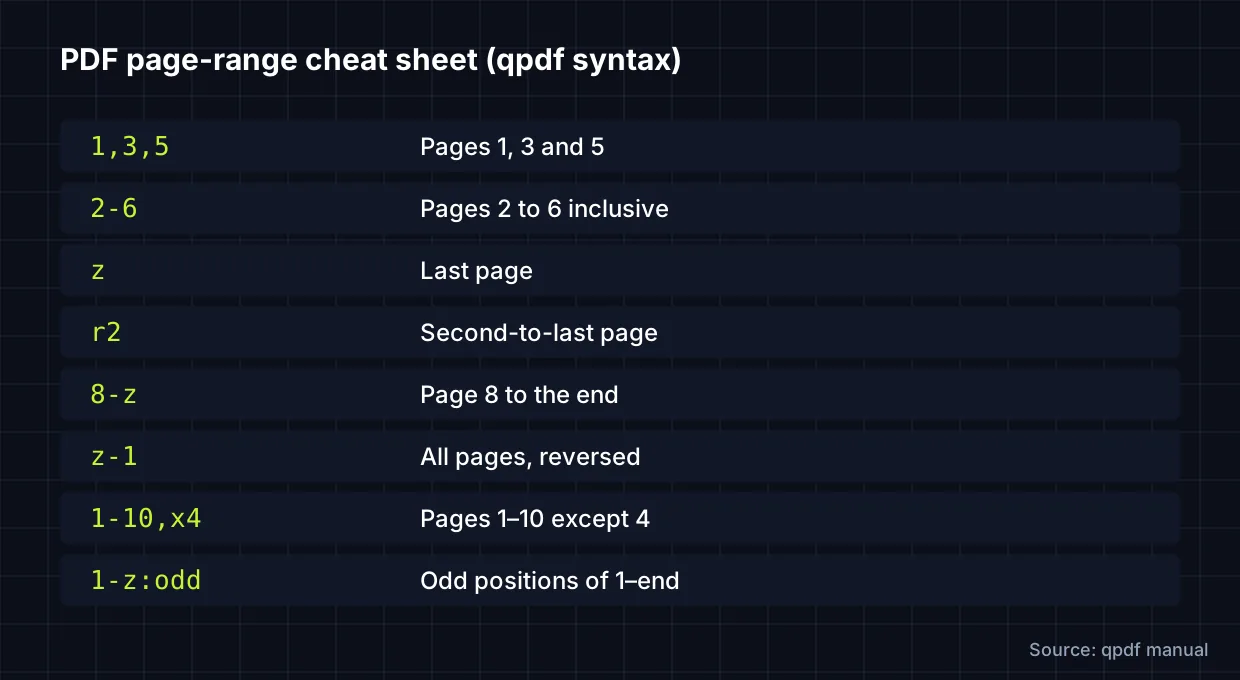
Extracting and splitting usually ask for a page range. The syntax below is qpdf’s, documented in the qpdf manual. Commas and hyphens work almost everywhere; the extras such as z and r are specific to qpdf and some other tools, so check your tool’s help before relying on them.
| Range | Selects |
|---|---|
1,3,5 | Pages 1, 3 and 5 |
2-6 | Pages 2 to 6, inclusive |
z | The last page |
r2 | The second-to-last page (r1 is the last) |
8-z | Page 8 to the end |
z-1 | Every page in reverse order |
1-10,x4 | Pages 1–10 except page 4 |
1-z:odd | Odd positions in the selection (pages 1, 3, 5…) |
Note that :odd and :even count positions in the selection, not original page numbers. 4-9:odd gives pages 4, 6 and 8.
Reorder, rotate and delete pages on a Mac
- Duplicate the PDF in Finder (File → Duplicate) and open the copy in Preview.
- Choose View → Thumbnails.
- Reorder: drag thumbnails to new positions.
- Rotate: select thumbnails and choose Tools → Rotate Left or Rotate Right.
- Delete: select thumbnails and press Delete.
- Extract: select the pages you need and drag them to the desktop, which creates a new PDF of just those pages.
Apple’s Preview guide covers moving pages between documents and warns that Preview saves automatically.
Do it with qpdf (Windows, macOS, Linux)
# Reorder: page 5 first, then 1-4, then the rest
qpdf report.pdf --pages . 5,1-4,6-z -- reordered.pdf

# Rotate pages 2 and 7 by 90° clockwise
qpdf scan.pdf --rotate=+90:2,7 -- rotated.pdf

# Extract pages 12-15 into a new file
qpdf report.pdf --pages . 12-15 -- section.pdf

# Split into one file per page (page-01.pdf, page-02.pdf ...)
qpdf report.pdf --split-pages page.pdf

# Split into files of 5 pages each (part-01-05.pdf, part-06-10.pdf ...)
qpdf report.pdf --split-pages=5 part.pdf
The . means “the input file”. Use +90 or -90 rather than a bare angle: the manual recommends relative rotation so already-rotated pages end up where you expect. Every command and range on this page was checked with qpdf 11.9.0 against a 20-page sample PDF.
Troubleshooting
- Rotation “doesn’t stick”: some viewers only rotate the view. Save a copy, then reopen it to confirm.
- Wrong pages extracted: page labels (i, ii, iii or printed page numbers) may differ from physical page positions. Ranges almost always use physical positions starting at 1.
- Bookmarks point to the wrong place after reordering: outlines may not be updated. Check them and rebuild if needed.
- Encrypted file: supply the password you’re entitled to; qpdf accepts
--password=.
FAQs
What’s the difference between extracting and splitting a PDF?
Extracting produces one new file containing the pages you choose. Splitting produces several files that together cover the original.
Does reordering or rotating reduce quality?
No, when the tool copies pages rather than re-rendering them. Preview’s thumbnail editing and qpdf both keep page content as it is.
How do I select the last page without counting?
In qpdf, use z for the last page or r1; r2 is the one before it.
Can I rotate just one page?
Yes. Select that page’s thumbnail in Preview, or add a page range to qpdf’s rotate option, such as --rotate=+90:3.
Reorder and extract pages with our Organise PDF tool
Need to rotate upside-down scans, delete blank pages, or extract specific page ranges like 1-3, 5, 8-? Use our free in-browser Organise PDF tool to arrange pages visually and download your updated PDF or split to a ZIP package.
Related free tools for this topic
Merge PDF Files Online (Free, No Uploads)
Combine multiple PDF documents into a single file directly in your browser. Reorder pages, keep your files private,…
Images to PDF Converter (JPG, PNG, WebP to PDF)
Turn screenshots, mockups, and loose images into one organized, properly sized PDF. Choose A4, US Letter, or fit…
Organise PDF: Reorder, Rotate & Extract Pages (Free)
Rearrange, rotate, delete or extract specific pages from any PDF document in your browser. Use visual page controls…
PDF to Images (JPG & PNG Converter)
Convert PDF pages into crisp PNG or JPEG images in your browser. Choose resolution scale (1× to 3×)…
SVG Optimiser for Web & Elementor (Clean viewBox & currentColor)
Shrink SVG icons, preserve the viewBox, remove fixed dimensions, and make vectors adapt to Elementor colours using currentColor.…
Aspect Ratio Calculator
Find the aspect ratio of any width and height, and calculate a new width or height that keeps…
Related resources

SaaS hero with dashboard preview
Two-column hero: headline, supporting text, two buttons and a trust line beside a visual panel. Stacks to one…
Centred SaaS hero with product window
Centred hero with a large headline, supporting text and two buttons, with optional highlights and a product window…

Dark studio hero with service highlights
Centred hero with a large headline, supporting text and two buttons, with optional highlights and a product window…
More guides
How to Merge PDF Files Without Uploading Them
You don't have to hand contracts or invoices to an unknown server to combine them. Merge PDFs with Mac Preview or the…

How to Read and Fix JSON Syntax Errors
JSON looks simple until a single misplaced comma breaks an import, an API request or a configuration file. The good news is…

Regex for Web Developers: 15 Patterns You Will Actually Use
Regex examples for web developers: regular expression patterns for common tasks, each explained and ready to try in a regex tester.
Comments