
Minifying CSS: What It Saves and When Your Build Should Do It
We minified WordPress core stylesheets with five tools and compressed the results: what minification saves on top of gzip and Brotli, and where it belongs in your workflow.
 Keyur
9 min read
On this page
Minifying CSS removes comments, whitespace and other characters the browser does not need, without changing how the styles work. On real WordPress stylesheets we tested, it cut file size by about 5% to 37% before compression. Once the server also compressed the file with gzip or Brotli, the extra saving from minification was about 1% to 45%, depending on how much the file was comments and indentation rather than data. Compression is the bigger win. The best place for minification is your build step or your caching or performance plugin, not hand-editing files.
This post explains what minifiers actually change and measures five popular tools on WordPress core stylesheets. It also shows where minification should happen in a WordPress workflow and how to check that your site really serves minified, compressed CSS. The figures come from our own test of WordPress 7.1.3's CSS files.
What minification removes
A minifier rewrites CSS into the shortest form that means the same thing to the browser. Depending on the tool and its settings, that includes:
Table: What CSS minifiers change
| Change | Example before | Example after | Risk |
|---|---|---|---|
| Remove comments | /* Header styles */ |
(removed) | None, unless a licence comment must stay; most tools keep /*! ... */ |
| Remove whitespace and line breaks | .a { color: red; } |
.a{color:red} |
None |
| Drop the last semicolon in a block | color:red;} |
color:red} |
None |
| Shorten values | #ffffff, 0.5em, 0px |
#fff, .5em, 0 |
Very low |
| Merge or restructure rules (some tools, advanced levels) | Two rules with the same selector | One rule | Low but real: reordering can change which rule wins |
Minification is different from removing unused CSS, which deletes rules a page does not use. That can save much more, but it can also break pages whose styles are added by JavaScript or appear only in some states, so it needs more testing.
<h2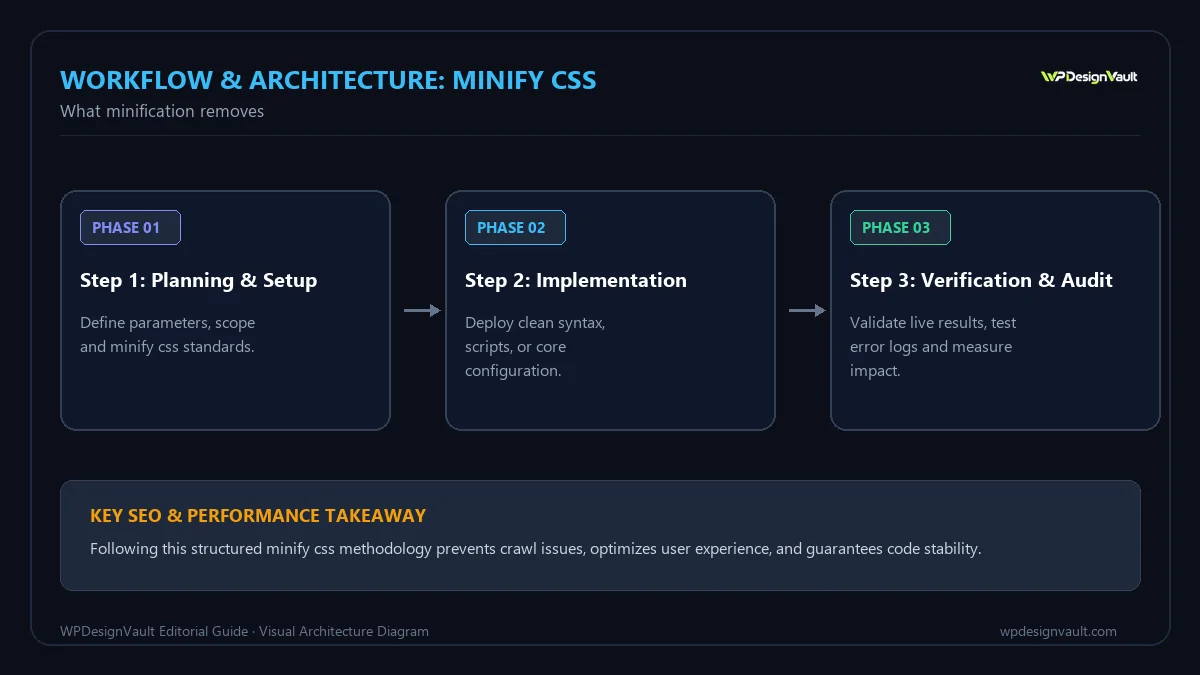
Worked example: what minifying WordPress's own CSS saves
Method. We took four unminified stylesheets that ship with WordPress 7.1.3 and minified each with five tools: clean-css 5.3 (levels 1 and 2), csso 5.0, Lightning CSS 1.33 and esbuild 0.25. We also measured the .min.css versions that WordPress ships. We then compressed every result with gzip (level 9) and Brotli (quality 11), as a web server or CDN would. Sizes are in bytes.
Table: Block library stylesheet (wp-includes/css/dist/block-library/style.css)
| Version | Raw | Gzip | Brotli |
|---|---|---|---|
| Unminified source | 164,523 | 22,551 | 18,510 |
| WordPress's own .min.css | 140,829 | 18,900 | 15,965 |
| clean-css level 2 | 140,746 | 19,056 | 16,134 |
| csso | 139,950 | 19,148 | 16,156 |
| Lightning CSS | 139,873 | 18,707 | 15,934 |
| esbuild | 141,653 | 19,108 | 16,186 |
Table: Saving from minification, by file (best tool, our test)
| File | Raw saving | Saving after gzip | Saving after Brotli |
|---|---|---|---|
| Block library styles | 15.0% | 17.0% | 13.9% |
| Admin form styles | 25.0% | 20.1% | 17.7% |
| Button styles | 37.4% | 45.2% | 43.7% |
| Dashicons (mostly an embedded font) | 6.6% | 1.4% | 0.8% |
What this shows:
- Compression matters most. Gzip alone took the block library stylesheet from 164,523 to 22,551 bytes, an 86% reduction. Minifying first saved about another 3.8 KB on top.
- Minification still adds up. On a heavily commented, neatly indented file such as the button styles, it nearly halved the compressed size.
- It barely helps data-heavy files. The Dashicons stylesheet is mostly an embedded font, which neither minifiers nor compression shrink much.
- The tools are close. All five landed within a few percent of each other and of WordPress's own minified files. Pick the one your build already uses.
Where minification should happen
Table: Where to minify CSS
| Situation | Best place | Why |
|---|---|---|
| You build a theme or plugin | Your build step (for example esbuild, Lightning CSS or PostCSS with cssnano) | Source stays readable; output is minified automatically every time |
| You run a site with plugins and a theme you do not build | A caching or performance plugin, or your host's or CDN's optimisation settings | Minifies files you do not control, usually with caching |
| A one-off snippet, such as CSS pasted into a page builder | An online minifier, or leave it as is | Small snippets save little; readability may matter more |
| Core WordPress files | Nothing to do | WordPress already serves .min.css files |
WordPress ships both versions of its own stylesheets. It loads the minified ones unless SCRIPT_DEBUG is set to true in wp-config.php, which switches to the readable versions for debugging. If you left SCRIPT_DEBUG on after troubleshooting, your site is serving larger files than it needs to; our guide to wp-config.php settings covers it.
Step by step: adding minification to a theme build
If you write your own theme or plugin CSS, let a tool do the work. A minimal setup with esbuild:
- Install it in your project:
npm install --save-dev esbuild. - Keep readable source in a
srcfolder. - Add a script to
package.json:
"scripts": {
  "build:css": "esbuild src/style.css --bundle --minify --sourcemap --outfile=assets/css/style.min.css"
}
Then run npm run build:css and enqueue assets/css/style.min.css in WordPress. Commit the source, and decide as a team whether built files are committed or built on deployment. In a quick test, this command turned a small commented rule into .site-header{padding:.5rem 0px;color:#fff} plus a source map file.
The --sourcemap option writes a map file so browser developer tools can show the original file and line numbers even though the browser runs the minified file.
Enqueue the built file with a version number so browsers fetch the new file after a change:
wp_enqueue_style(
    'mytheme-style',
    get_theme_file_uri( 'assets/css/style.min.css' ),
    array(),
    filemtime( get_theme_file_path( 'assets/css/style.min.css' ) )
);
Using a plugin or host setting
Many caching and performance plugins, and some hosts and CDNs, offer "minify CSS" and "combine CSS" options. Turn on minification first and test before combining files:
- Minification rarely breaks anything, because it does not change meaning.
- Combining files changes the order and loading of stylesheets and is more likely to cause layout problems. On modern HTTP/2 and HTTP/3 connections, combining usually brings less benefit than it once did.
- After enabling either option, clear all caches and check key pages, including logged-out views.
Minifying a snippet by hand
For a one-off snippet, the CSS minifier removes comments and whitespace in your browser, can keep /*! */ licence comments and reports how many bytes it saved. It does not merge rules, so it will not change which rule wins. To read minified CSS, the CSS beautifier re-indents it. Keep the readable original; never edit minified CSS directly.
What minification does not fix
Smaller files load faster, but minification leaves several larger CSS costs untouched:
- Unused rules. A theme or page builder may ship styles for features a page never uses. Minifying keeps every rule; only unused-CSS removal deletes them, and that needs careful testing.
- Render-blocking stylesheets. The browser waits for CSS in the
headbefore showing the page. Fewer, smaller stylesheets help, but the number and order of files matter as much as their size. - Duplicate libraries. Two plugins loading their own copies of the same icon font or grid framework cost far more than whitespace does.
- Large embedded data. Fonts or images embedded as Base64 inside CSS, as in the Dashicons file we tested, do not shrink with minification.
If a performance report flags CSS, look at the transferred size of each stylesheet first. Then ask whether each file is needed on that page at all before worrying about the last few kilobytes of whitespace.
Check what your site really serves
- Look at the file names. In your browser's developer tools, open the Network panel, filter by CSS and reload. Minified files usually end in
.min.cssor come from a plugin's cache folder. - Look at a file's content. Open one. Minified CSS is one long line with no comments.
- Check compression. Click a CSS request and check the
Content-Encodingresponse header:gzip,brorzstdmeans the file was compressed. You can also check a stylesheet URL's headers with the HTTP headers checker. - Compare transferred and resource sizes. The Network panel shows both; the transferred size should be much smaller if compression is on.
- Check pages visually after any optimisation setting changes.
If Content-Encoding is missing, enable compression before worrying about minification. On Apache, that is usually done with mod_deflate rules; our guide to the default WordPress .htaccess file covers safe additions. Many hosts and CDNs compress automatically.
Common mistakes
- Minifying but not compressing, and missing the much larger saving.
- Editing a minified file directly, so the change is lost at the next build.
- Leaving
SCRIPT_DEBUGenabled on a live site. - Enabling minify, combine and remove-unused-CSS all at once, then not knowing which one broke the layout.
- Using aggressive restructuring options without testing pages where rule order matters.
- Removing licence comments that third-party CSS requires you to keep.
- Forgetting to change the version number, so returning visitors keep an old cached file.
Troubleshooting
Table: CSS minification problems
| Symptom | Likely cause | Fix |
|---|---|---|
| Layout breaks after enabling an optimisation plugin | Combining or reordering files, or unused-CSS removal | Turn options off one at a time; keep minify, exclude problem files from combining |
| Changes do not appear | Cached minified file or unchanged version string | Clear plugin, server and CDN caches; bump the version |
| Hard to debug in developer tools | No source map | Generate source maps in your build, or turn on SCRIPT_DEBUG on staging |
| Minified file is barely smaller | The file is mostly data (fonts, images) or already minified | Expected; look at compression and unused CSS instead |
| Syntax error in output | Invalid CSS in the source, such as a missing brace | Fix the source; minifiers can expose existing errors |
Frequently asked questions
What does it mean to minify CSS?
It means rewriting a stylesheet into the shortest equivalent form, by removing comments, whitespace and redundant characters, so the file is smaller but the styles work exactly the same.
How much does minifying CSS save?
In our test of WordPress core stylesheets, about 5% to 37% before compression. After gzip or Brotli, the extra saving was about 1% to 45%, depending on how many comments and how much formatting the file had.
Is gzip or Brotli more important than minification?
Yes, usually. Compression alone cut the largest file we tested by 86%. Use both: minification shrinks what compression has to work with.
Does WordPress minify CSS automatically?
WordPress ships minified versions of its own stylesheets and serves them unless SCRIPT_DEBUG is on. It does not minify theme or plugin CSS; that is up to the developer, a plugin or the host.
Can minification break my site?
Basic minification rarely does. Combining files, aggressive restructuring and removing unused CSS are more likely to cause problems, so enable them separately and test.
Which CSS minifier is best?
In our test, clean-css, csso, Lightning CSS and esbuild all produced files within a few percent of each other. Use the one your build tools already include.
Should I minify CSS in Elementor?
Elementor generates its own CSS files. Use your performance plugin or host settings for site-wide minification, and test pages built with Elementor afterwards.
Do I need source maps?
They are optional but useful. A source map lets developer tools show the original file and line, which makes debugging minified CSS much easier.
Should I combine CSS files as well?
Not by default. Over HTTP/2 and HTTP/3, combining usually helps less than it once did and is more likely to cause ordering problems. Test before relying on it.
How can I tell if my CSS is minified and compressed?
In the browser's Network panel, minified CSS is one long line, and compressed responses show a Content-Encoding header such as gzip or br.
Next step
Open your site with the Network panel showing and check two things: that your stylesheets are compressed and that they are minified. If you write your own CSS, add minification to your build. For a quick snippet, paste it into the CSS minifier to see the saving.
Related free tools for this topic
CSS Minifier
Minify CSS by removing comments and unnecessary whitespace, and see exactly how many bytes you save.
Type Scale Generator
Build a harmonious typographic scale from a base size and ratio, preview it, and export CSS variables. Switch…
CSS Text Shadow Generator
Create subtle, glowing, outlined or layered CSS text shadows with a live preview on your own text, then…
Spacing Scale Generator (4pt & 8pt Grid)
Create a consistent spacing system on a 4pt or 8pt grid and export it as CSS custom properties…
REM to PX Converter
Convert rem values to pixels for any root font size, with a quick reference table.
PX to REM Converter
Convert pixels to rem instantly with any base font size, see a reference table, or convert every px…
Related resources

SaaS hero with dashboard preview
Two-column hero: headline, supporting text, two buttons and a trust line beside a visual panel. Stacks to one…
Centred SaaS hero with product window
Centred hero with a large headline, supporting text and two buttons, with optional highlights and a product window…

Dark studio hero with service highlights
Centred hero with a large headline, supporting text and two buttons, with optional highlights and a product window…
Related articles
SHA-256 vs MD5: Hashing for Checksums, Not Passwords
MD5 is broken for collision resistance; SHA-256 is not, and on our test machine it was faster. Where each fits, how to…

Unix Timestamps: Seconds, Milliseconds and Time Zones
What a Unix timestamp is, why seconds and milliseconds get mixed up, how to convert correctly in JavaScript, PHP, Python and WordPress,…
UUID v4 Explained: Uniqueness, Formats and Use Cases
The UUID v4 format, collision odds calculated, generation and validation tested in Node.js, Python and WordPress, and an SQLite test of random…
Related guides
How Long Should a Meta Title Be? Pixels vs Characters Explained
"Keep it under 60 characters" is only half right. Google cuts titles by pixel width, not character count. Learn how to write…
The Default WordPress .htaccess File (and Safe Additions)
The exact .htaccess rules WordPress needs for pretty permalinks, what each line does, tested additions for HTTPS and file protection, and a…
Fluid Typography in Elementor with clamp()
Setting a heading to 56 px on desktop, 44 px on tablet and 32 px on mobile works, but text jumps between…
Comments