
Convert PDF Pages to JPG or PNG Images
Export PDF pages as PNG or JPEG images in your browser. Learn which scale to use for websites, slides and print, when PNG beats JPEG, how page ranges work, and how to fix blurry, oversized or mismatched images.
 Keyur
9 min read
On this page
A client sends a twelve-page PDF brochure and asks for “the pricing page as an image” for a social post. A designer needs one slide from a deck as a PNG for a case study. A developer wants page previews for a documentation site. In each case the task is the same: convert PDF pages to images, at a size and quality that suits where the image is going. This guide shows how to do that in your browser, how to choose between PNG and JPEG, which scale to use, and what to check before the image goes live.
Short answer: open the PDF in a converter that renders each page with PDF.js, choose PNG for pages with text, interface screenshots or line art and JPEG for photographic pages, set the scale to 2× for web and slide use, enter a page range such as 1-3 or 2,5, then download individual pages or a ZIP. An A4 page at 2× becomes a 1190 × 1684 pixel image.
What “converting a PDF page to an image” actually does
A PDF page is not a picture. It is a set of drawing instructions: place this text in this font at this position, fill this rectangle, draw this embedded photo. To turn a page into a PNG or JPEG, a renderer follows those instructions and paints the result onto a pixel grid. That process is called rasterising.
Two consequences follow from this:
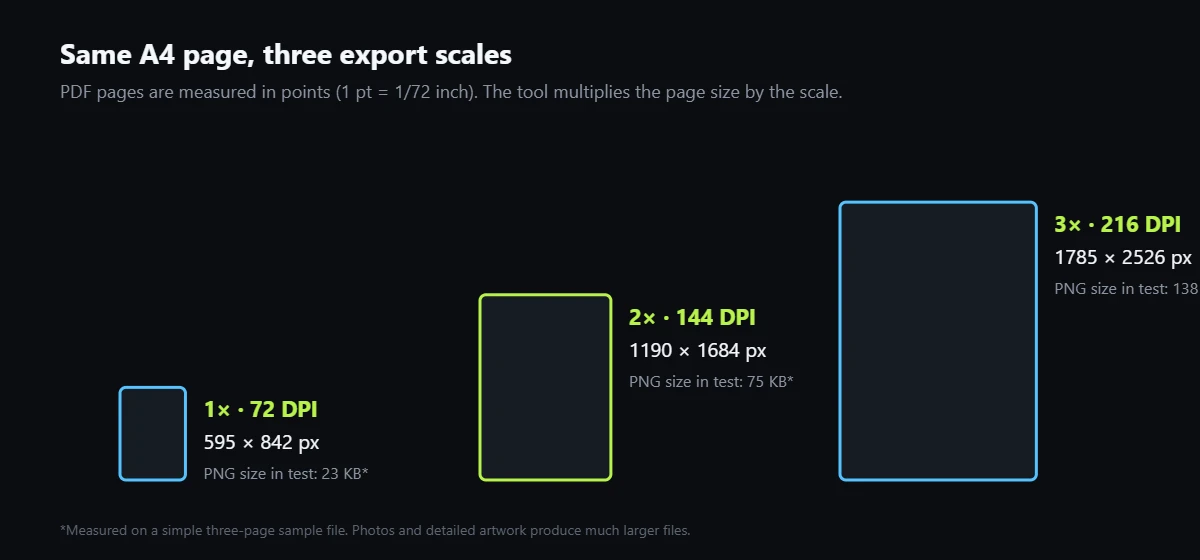
- The output size is your decision. PDF pages are measured in points, where one point is 1/72 of an inch. An A4 page is 595 × 842 points and a US Letter page is 612 × 792 points. At 1× scale, one point becomes one pixel. At 2×, every dimension doubles.
- Text stops being text. Once a page is an image, nobody can select, search or copy its words, and screen readers cannot read them. If the words matter, you need alt text or the same content as real HTML next to the image.
The PDF to Images tool uses Mozilla’s PDF.js library to do the rendering inside your browser tab, then exports each rendered page with the browser’s canvas.
When to export PDF pages as images
Converting pages is the right move when the destination cannot display a PDF, or when a PDF would be awkward:
- Social posts and newsletters: most platforms and email clients show images inline but treat PDFs as attachments.
- Portfolio and case-study pages: a single slide or spread shown as an image loads faster than an embedded PDF viewer.
- Documentation and changelogs: page previews help readers decide whether to download the full file.
- Feedback rounds: annotation tools often work better on images than on PDFs.
- Page builders: Elementor’s Image widget and the WordPress Image block accept images, not PDF pages.
It is the wrong move when people need to search, copy or print the text, or when the file is a form. In those cases, link to the PDF itself and use an image only as a preview.
How to convert PDF pages to JPG or PNG in your browser
The steps below use the PDF to Images tool. The workflow is the same in most browser-based converters; the option names may differ.
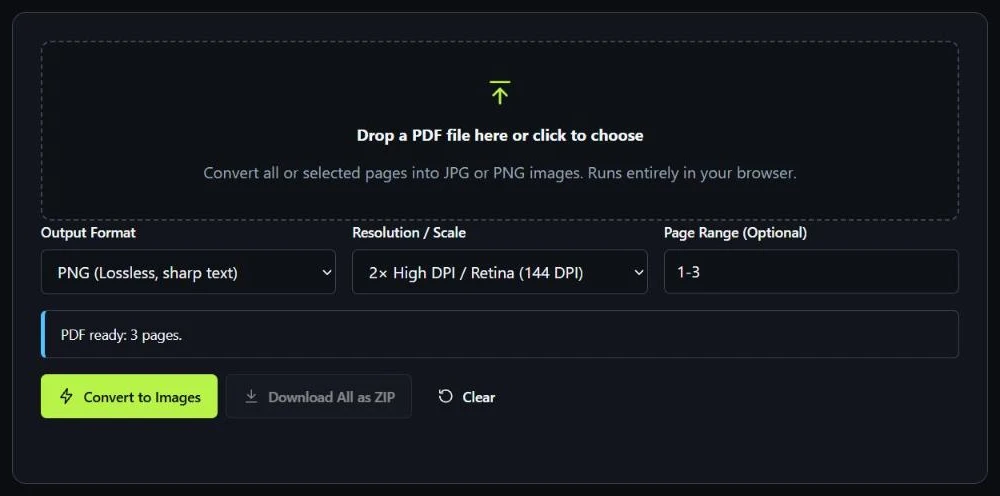
- Open the file. Drag the PDF onto the drop zone or click it to choose a file. The tool reports how many pages it found, for example “PDF ready: 3 pages.”
- Choose the output format. PNG is lossless and keeps small text sharp. JPEG produces smaller files and suits photographs. When you choose JPEG, a quality slider appears (50–100%, default 90%).
- Choose the resolution scale. The options are 1× (72 DPI), 2× (144 DPI) and 3× (216 DPI). The section on scale below explains which to pick.
- Enter a page range, or leave it empty. Leave the field blank to convert every page. Use commas for separate pages (
2,5,9) and a hyphen for runs (3-6). - Select Convert to Images. Each page appears with its pixel dimensions and its own download button.
- Download. Save single pages, or select Download All as ZIP to get every converted page in one archive.
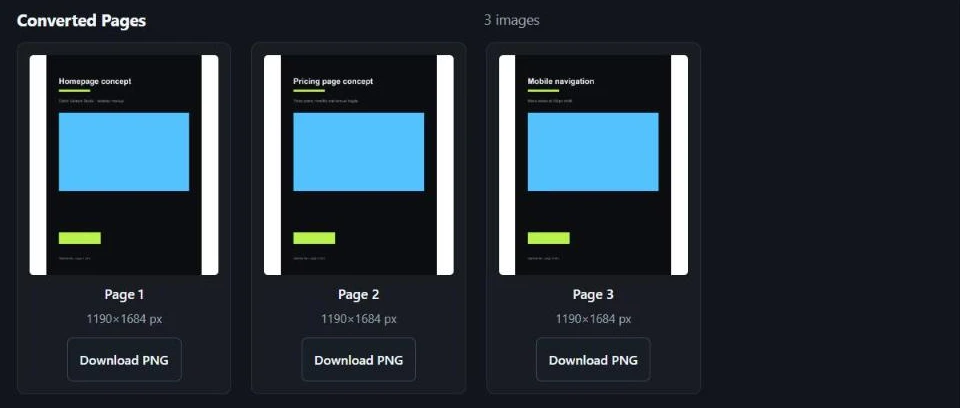
A worked example
To check the numbers in this guide, a simple three-page A4 sample file (flat colours and short headings, no photographs) was converted with the tool:
| Setting | Pixel size per page | PNG file size per page |
|---|---|---|
| PNG at 1× | 595 × 842 | about 23 KB |
| PNG at 2× | 1190 × 1684 | about 75 KB |
| PNG at 3× | 1785 × 2526 | about 138 KB |
| JPEG at 2×, quality 90% | 1190 × 1684 | about 36 KB |
Treat the file sizes as a sense of proportion, not a prediction. A page full of photographs or textured artwork produces much larger PNGs, and the gap between PNG and JPEG widens. The pixel dimensions, however, follow directly from the page size and the scale, so they are predictable for any PDF.
Choosing the right scale
Scale is the setting people get wrong most often, because “DPI” sounds like a print setting. For screen use, think in pixels instead:
- 1× (72 DPI): one pixel per point. Fine for thumbnails, quick previews and email. Small body text becomes soft and hard to read.
- 2× (144 DPI): the sensible default for websites, slides and social posts. It stays sharp on high-density (retina) screens when displayed at roughly half its pixel width.
- 3× (216 DPI): for zooming into detail or for print proofs. The tool notes that phones and tablets have tighter memory limits, so use 1× or 2× there; 3× is supported on desktop.
A quick rule for web pages: export at about twice the width the image will be displayed at. If your blog’s content column is 760 pixels wide, a 1190-pixel-wide image gives retina screens enough detail, and WordPress will generate smaller sizes for other screens.
If you need an exact size, such as 1200 pixels wide for an Open Graph image, export at 2× and then resize with the Image Resizer rather than trying to hit the number through the scale setting.
PNG or JPEG for PDF pages?
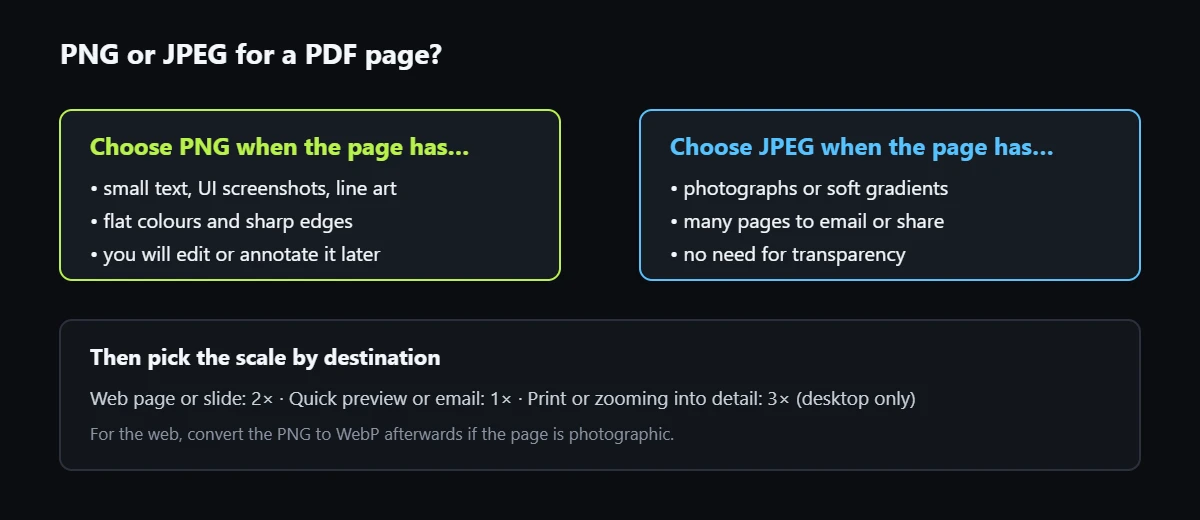
The choice depends on what is on the page, not on the PDF itself:
- PNG compresses without losing detail, so edges and small text stay crisp. It is the better choice for slides, wireframes, interface screenshots, diagrams and anything with flat colour.
- JPEG discards detail the eye is unlikely to notice. That works well for photographs and soft gradients, but around sharp text JPEG can create faint blotchy halos called compression artefacts.
For pages that end up on a website, there is a third step worth considering. Converting the exported PNG or JPEG to WebP usually reduces file size further. The PNG to WebP converter does this in the browser, and the guide to WebP vs JPG vs PNG explains when each format is appropriate.
Privacy: what “runs in your browser” means here
The PDF to Images tool does not send your PDF to a server. The file is read by the browser, rendered by PDF.js in the page, and exported with the canvas. During a test conversion, the browser’s resource timing log recorded no network requests while pages were being converted.
That is a meaningful protection for client work, but it is worth being precise about its limits:
- The page itself still loads its scripts, stylesheets and, depending on your consent choices, analytics, like any web page. None of those carry your file.
- “Not uploaded” is not the same as “securely deleted.” Converted images live in the tab’s memory until you clear them or close the tab, and downloaded files are stored wherever your browser saves downloads.
- Browser extensions you have installed can read pages you visit. For very sensitive documents, use a clean browser profile or a desktop application you trust.
Troubleshooting common problems
The text looks different from the original
PDF.js renders embedded fonts accurately. If the PDF relies on fonts that are not embedded, a similar system font is substituted, which can change line breaks and spacing. Ask for a PDF exported with “embed all fonts”, or export the page as an image from the source application instead.
The image is blurry
The scale was too low for the size at which the image is displayed. Re-export at 2× or 3×. Also check that your theme or page builder is not stretching a small image to fill a wide column.
The file is huge
PNG at 3× of a photographic page can run to several megabytes. Switch to JPEG, drop to 2×, or convert the result to WebP. The Image Compressor can reduce size further without changing dimensions.
The browser tab slows down or crashes
Large PDFs at 3× use a lot of memory, because every page is held as a full-resolution image. Convert fewer pages at a time with the page-range field, use a lower scale, or use a desktop browser instead of a phone.
Password-protected PDFs
Some PDFs need a password to open. Remove protection in the application that created the file (or ask the sender for an unprotected copy) before converting. Never use a converter to get around restrictions on a document you are not authorised to use.
Limitations and alternatives
- One page becomes one image. The tool does not stitch several pages into one tall image or a grid. If you need a contact sheet, place the exported pages in a design tool.
- No vector output. PNG and JPEG are pixel formats. If you need a page as editable vector artwork (SVG or EPS), use a desktop application such as Adobe Illustrator or Inkscape, which can import PDF pages as vectors.
- Accessibility moves to you. Text in an image is invisible to screen readers and search engines. Write alt text that conveys the page’s purpose, and publish important content as real text.
- Command-line options exist. For batch jobs on a server, tools such as Poppler’s
pdftoppmconvert whole folders of PDFs to images from a script.
Related PDF workflows
Converting pages to images often sits in the middle of a bigger job:
- Going the other way, the guide to turning design mockups into one client-ready PDF shows how to combine PNG and JPEG files into a single PDF.
- Need only some pages before you convert? Reorder, rotate and extract PDF pages first.
- Combining several documents? See how to merge PDF files without uploading them.
Frequently asked questions
What resolution should I use to convert a PDF to images for a website?
Use 2× scale. An A4 page becomes 1190 × 1684 pixels and a US Letter page becomes 1224 × 1584 pixels, which stays sharp on high-density screens when shown in a typical content column.
Is PNG or JPEG better for PDF pages with text?
PNG. It keeps small text and sharp edges crisp. JPEG suits photographic pages and produces smaller files, but can blur fine text.
Can I convert only some pages?
Yes. Enter pages separated by commas, such as 2,5,9, or a range such as 3-6, in the page-range field. Leave it empty to convert every page.
Does the PDF get uploaded to a server?
Not with the PDF to Images tool: rendering and export happen in your browser. The web page itself still loads normal assets, and downloaded images stay on your device.
Why do my images have a white background?
Most PDF pages have an opaque white page area, so the rendered image includes it. If you need a transparent background, export the artwork from the source design file instead of from the PDF.
Can I convert a PDF to images on a phone?
Yes, but use 1× or 2× scale. Phones have less memory available to the browser, and very large pages at 3× may fail.
Next step
Open the PDF to Images converter, load a PDF, and export the pages you need at 2× as PNG. If those images are going on a website, finish by converting them to WebP and adding descriptive alt text. More PDF utilities are in the PDF tools collection.
Related free tools for this topic
Type Scale Generator
Build a harmonious typographic scale from a base size and ratio, preview it, and export CSS variables. Switch…
CSS Text Shadow Generator
Create subtle, glowing, outlined or layered CSS text shadows with a live preview on your own text, then…
SVG to PNG Converter (Any Size, Transparent)
Convert an SVG file or pasted SVG code to a sharp PNG at any width, with a transparent…
Spacing Scale Generator (4pt & 8pt Grid)
Create a consistent spacing system on a 4pt or 8pt grid and export it as CSS custom properties…
REM to PX Converter
Convert rem values to pixels for any root font size, with a quick reference table.
PX to REM Converter
Convert pixels to rem instantly with any base font size, see a reference table, or convert every px…
Related resources

SaaS hero with dashboard preview
Two-column hero: headline, supporting text, two buttons and a trust line beside a visual panel. Stacks to one…
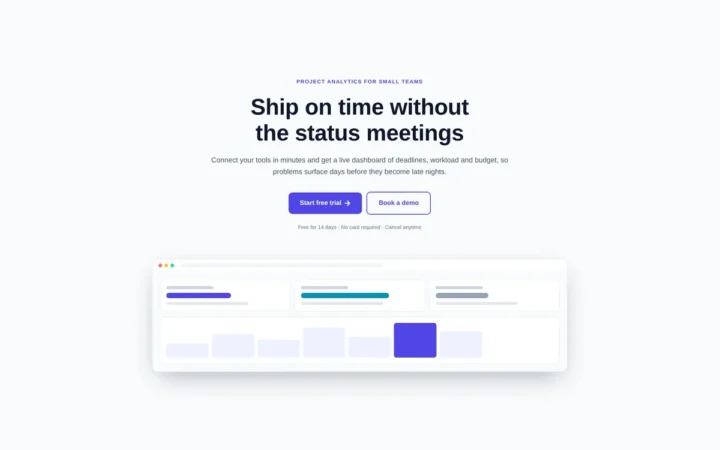
Centred SaaS hero with product window
Centred hero with a large headline, supporting text and two buttons, with optional highlights and a product window…
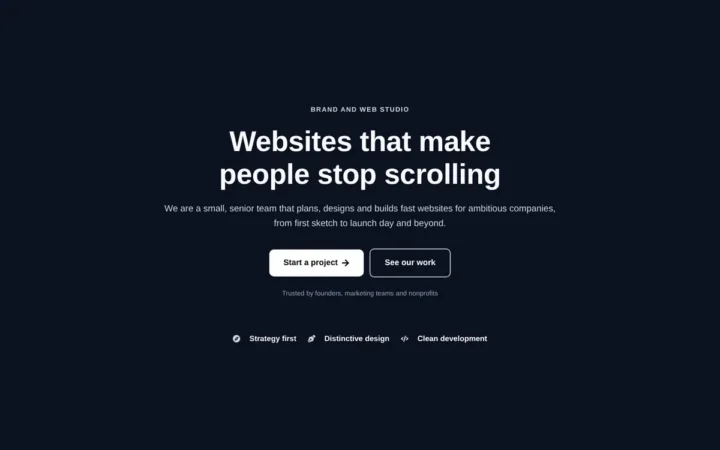
Dark studio hero with service highlights
Centred hero with a large headline, supporting text and two buttons, with optional highlights and a product window…
More guides
Turn Design Mockups into One Client-Ready PDF
Sending a client loose screenshots invites confusion. Learn how to combine images into a single PDF with the right page size, orientation…

WCAG Color Contrast: The Ratios That Matter and How to Fix Failing Colors
Low-contrast text is the most common accessibility failure on the web, and also one of the easiest to fix. Light grey text…
PX vs REM vs EM: Which CSS Unit to Use
Which CSS unit to use for font sizes, spacing, borders and breakpoints, tested in Chromium: rem follows a visitor's text size, px…