
Add a Trust Section Below Your Elementor Hero
The section under your hero is where visitors look for proof. Decide whether a logo strip, stats band or single testimonial fits what you can verify, place it well, build it in Elementor Free, and replace every piece of demo content before going live.
 Keyur
4 min read
On this page
Your hero makes a promise. The section directly beneath it is where a cautious visitor looks for a reason to believe it. A trust section can be a strip of client logos, a short band of statistics, or one strong testimonial, but only if the proof is real. This guide helps you choose the right type, place it well in Elementor, and avoid claims you can’t back up.
Short answer: add an Elementor trust section immediately below the hero, using the strongest proof you can verify: client or press logos you have permission to show, measured statistics with a source and date, or a testimonial from a named customer who agreed to be quoted. Keep it to one short row. If you have none of these yet, leave the section out rather than filling it with placeholders.
Choose the proof you can actually back up
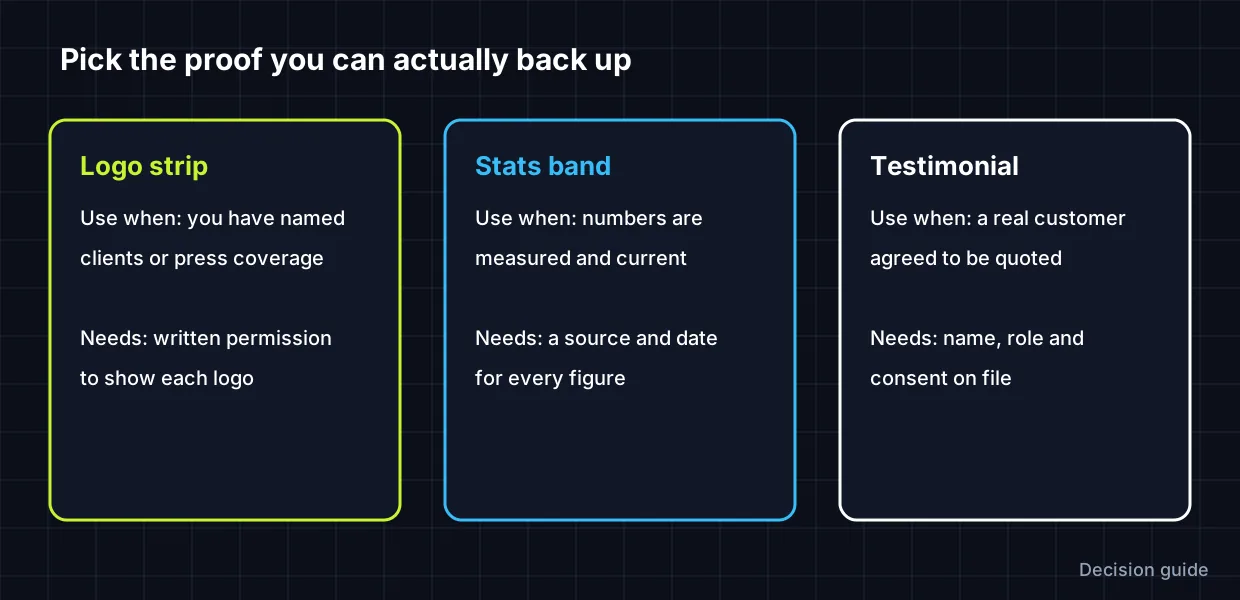
| Type | Use when | You need | Avoid |
|---|---|---|---|
| Logo strip | You’ve worked with recognisable organisations or been featured by named publications | Permission to display each logo; logos that are current | Logos of tools you merely use, or clients who haven’t agreed |
| Stats band | You have measured, current figures | A source, a date and a definition for each number | Rounded-up guesses, vanity totals, numbers without a time frame |
| Testimonial | A real customer gave a specific, relevant quote | Name, role, consent on file; a photo only with permission | Anonymous praise, edited quotes, invented customers |
In the US, the FTC’s 2024 rule on consumer reviews and testimonials prohibits fake reviews and testimonials, and other markets have similar consumer-protection rules. This isn’t legal advice, but the practical test is simple: only publish proof you could show someone if asked.
Where the trust section goes
Place it directly after the hero, before features or pricing. A visitor who has just read your headline asks “who else trusts them?” at that moment, and a compact proof row answers it without demanding much attention. Keep it visually quieter than the hero: smaller type, muted logos, plenty of space. A busy trust section competes with the call to action above it.
Build a logo strip in Elementor Free
- Below your hero, add a container with a short caption, for example “Trusted by teams at”, as a small Heading or Text Editor widget.
- Add a child container set to Row, with wrap enabled and centred alignment.
- Add one Image widget per logo. Use SVG or transparent PNG files of similar visual weight, and set a consistent height (for example 32–40 px) rather than width, so wide and square logos balance.
- Give each logo alt text naming the organisation, for example “Acme Studio”. If a logo links to a case study, describe the destination in the link.
- On mobile, allow the row to wrap to two lines, or show fewer logos. Don’t shrink logos until names are unreadable.
- If you use greyscale or reduced opacity for a muted look, check that the logos remain recognisable.
Build a stats band
- Add a container with three or four child columns. On mobile, switch to two columns or one.
- In each column, use Elementor Free’s Counter widget or a Heading for the number, plus a short label beneath.
- Write labels that define the number: “Projects delivered since 2021” says more than “Projects”.
- Add a small note with the source and date, for example “Figures from our project tracker, October 2026”.
- If you use the animated Counter, remember the final number is what matters; make sure it’s correct in the widget settings.
Or use a single testimonial
One specific quote often outweighs a carousel of vague ones. Choose a quote that describes a concrete result in the customer’s own words, show their name and role, and get written consent. WPDesignVault’s Elementor testimonial sections include layouts with a single large quote.
Replacing demo content in downloaded sections
Every WPDesignVault section ships with placeholder text, numbers and contact details. Before publishing, replace all of them with accurate information for your business. Never leave demo logos, sample statistics or invented testimonial names on a live site; visitors can’t tell they’re placeholders, and that’s exactly what makes them misleading.
Pair your trust section with a hero that’s already working on phones; building an Elementor hero section that works on mobile covers that, and the hero section library has ready-made starting points.
FAQs
Can I show logos of companies I’ve worked for?
Only with permission. Contracts and brand guidelines often restrict logo use, and showing a logo implies an endorsement the company may not have given.
What if I’m just starting and have no proof yet?
Leave the section out, or use honest alternatives such as a clear guarantee, a transparent process, or your own credentials. Empty proof is worse than none.
Should the logo strip be a carousel?
A static, wrapping row is usually clearer and lighter. Auto-moving carousels distract and need pause controls for accessibility.
How many logos or stats should I show?
Four to six logos, or three to four statistics, fit one row on desktop and stay readable on phones.
Related free tools for this topic
WordPress Snippet Generator
Generate clean, escaped WordPress code for the tasks developers repeat most: enqueueing scripts and styles, shortcodes, widget areas,…
WordPress Salt & Security Key Generator
Generate a fresh set of WordPress security keys and salts in your browser, ready to paste into wp-config.php.
wp-config.php Generator
Generate a complete wp-config.php with database details, newly generated security keys, debug settings and useful constants. Keys are…
Custom Taxonomy Generator
Generate clean, translation-ready register_taxonomy() code for WordPress, with category-style or tag-style behaviour, block editor support and admin columns.
HTTP Security Headers Generator
Generate recommended HTTP security headers for your site and get them as Apache, Nginx or WordPress PHP code.
301 Redirect Generator
Paste old and new URLs to generate exact-match redirect rules for Apache (.htaccess), Nginx or a WordPress snippet.…
Related resources

SaaS hero with dashboard preview
Two-column hero: headline, supporting text, two buttons and a trust line beside a visual panel. Stacks to one…
Centred SaaS hero with product window
Centred hero with a large headline, supporting text and two buttons, with optional highlights and a product window…

Dark studio hero with service highlights
Centred hero with a large headline, supporting text and two buttons, with optional highlights and a product window…
More guides

How to Optimise SVG Icons for Elementor
SVG icons that won't resize or recolour in Elementor usually have fixed dimensions or hard-coded colours. Learn what viewBox, width, height and…
Build an Elementor Comparison Table That Works on Mobile
Comparison tables that look great on desktop often collapse on phones. Compare three mobile patterns (stacked cards, a sticky-column table and one…
Fluid Typography in Elementor with clamp()
Setting a heading to 56 px on desktop, 44 px on tablet and 32 px on mobile works, but text jumps between…
Comments