
How to Import an Elementor Template Step by Step
Import an Elementor template from a .json file or paste JSON between sites, understand what happens to images, colours and fonts, and fix the errors that stop imports working.
 Keyur
10 min read

On this page
To import an Elementor template, go to Templates → Saved Templates in the WordPress dashboard, click Import Templates, choose the .json file and click Import Now. Then open a page with Elementor, click the folder icon (Add Template), and insert it from the My Templates tab. If you have JSON copied from another site instead of a file, right-click in the Elementor editor and choose Paste from other site. Both methods work in Elementor's free version, as long as the template does not rely on Pro or add-on widgets you do not have.
This guide covers both methods step by step, explains the difference between templates, copied elements and full website templates (kits), what happens to images, colours and fonts during import, and how to fix the errors that stop imports working.
Three different things called "importing a template"
Table: Types of Elementor imports
| What you have | What it contains | How to import it |
|---|---|---|
A template .json file |
One page, section or container layout | Templates → Saved Templates → Import Templates |
| JSON copied to the clipboard | One or more elements copied from another site | Right-click in the editor → Paste from other site |
A website template (kit) .zip |
Pages, templates, site settings (global colours, fonts, layout) and sometimes content and plugins | Elementor's Website Templates import tool |
Website templates are a different tool: Elementor's documentation places their import and export under Elementor's editor home screen, in the Tools panel's Website Templates tab, and they can include site settings such as global fonts and colours. Importing one can change the look of your whole site, so test kits on a staging site. The rest of this guide focuses on single templates and copied elements.
<h2
Before you start
- Elementor version. Use a current version. Templates built with containers need container support, which is on by default in current versions. Copy and paste between sites requires Elementor 3.11 or later on both sites, according to Elementor's documentation.
- Matching layout features. Elementor notes that both sites need the same features enabled: you can paste a section into a site that uses containers, but not a container into a site that only uses sections.
- Pro and add-on widgets. Widgets from Elementor Pro or third-party add-ons only work if those plugins are active. The Elementor JSON Validator checks a file before you import it: it validates the JSON, checks the template structure, lists the widgets used, and flags those that need Elementor Pro or an add-on.
- Trusted sources only. HTML, shortcode and custom code widgets can contain scripts. Import templates only from sources you trust, and review any code widgets after importing.
- A staging site is ideal for trying new templates, especially kits.
Method 1: Import a .json template file
- In the WordPress dashboard, go to Templates → Saved Templates. (In older Elementor versions this was Elementor → Templates.)
- Click Import Templates at the top of the screen.
- Click Choose File, select the
.jsonfile and click Import Now. - The template appears in the Saved Templates list.
- Open the page you want to use it on and click Edit with Elementor.
- Click the folder icon (Add Template) in the canvas, open the My Templates tab and click Insert next to the template.
- Click Publish or Update.
Expected result: the section or page appears in the editor, styled as in the preview, and the template remains available in My Templates for reuse.
For full-page templates, set the page layout in the page settings to Elementor Full Width or Elementor Canvas if the template was designed without the theme's header and footer.
<h2
Method 2: Paste JSON from another site
- Copy the elements. On the source site, right-click the element's handle and choose Copy. On sites that offer it, such as our resource pages, click the Copy JSON button.
- Open the target page in Elementor.
- Right-click an empty container area (or the "Drag widget here" box) and choose Paste from other site.
- Press Ctrl+V (Windows) or Cmd+V (Mac) to confirm, before closing the dialog.
- To reuse the pasted layout, right-click its outer container and choose Save as template.
Elementor's documentation notes that cross-site copy and paste works for Elementor's own elements, not third-party add-on widgets. Copy and paste is quickest for one-off sections; importing a file is better for templates you will reuse or share with a team.
Using WPDesignVault's free Elementor sections
Every section in our free Elementor resources library offers both a downloadable .json file and a Copy JSON button, so you can use either method. Each resource page lists the widgets it uses and whether it needs Elementor Pro. For example, the six-feature grid with icon cards uses only containers, heading and icon-box widgets from Elementor Free, and lists its spacing, breakpoint behaviour and tested Elementor version on the page.
What happens during import
Images
Templates refer to images by URL. Depending on the method and source, Elementor may download images into your Media Library or leave them pointing at the original site. Check every image after importing, replace placeholder images with your own, and make sure you have the right to use any image that came with the template. Our library sections contain no images, so there is nothing to replace there except optional visuals you add yourself.
Global colours and fonts
If a template's widgets use global colours and fonts, they take on your site's global values after import, so the result can look different from the preview. That is usually what you want: the section adopts your brand automatically. Templates with colours set directly on each widget look the same everywhere; you can switch those to your globals afterwards for consistency.
Element IDs and duplicates
Elementor gives imported and pasted elements new internal IDs, so importing the same template twice does not cause conflicts. Custom CSS IDs or classes set in the Advanced tab are kept, so check that they do not clash with existing ones on the page.
After importing: a checklist
- Replace all placeholder text, prices, statistics and contact details.
- Set real links on buttons; templates often use
#. - Check heading levels: one H1 per page, then H2 for sections. Our guide to heading structure explains why.
- Switch colours and fonts to your global styles where needed.
- Check tablet and mobile layouts in responsive mode, then on a real phone. Our guide to Elementor responsive design covers common fixes.
- If you use fluid font sizes, replace any fixed sizes in the template with your global fonts; see fluid typography in Elementor.
- Delete sections you do not need, rather than hiding them.
- Review any HTML, shortcode or code widgets.
Worked example: adding a features section
The following is an illustrative example using one of our free sections.
- The JSON file is downloaded and checked in the Elementor JSON Validator: valid, containers only, no Pro widgets.
- It is imported under Templates → Saved Templates → Import Templates.
- On the home page, the template is inserted below the hero from My Templates.
- The heading, six feature titles and descriptions are replaced, and the heading level is checked (H2, because the page already has an H1).
- Icon colours are switched to the site's Accent global colour.
- Responsive mode shows three columns on desktop, two on tablet and one on mobile, as listed on the resource page.
Troubleshooting
Table: Elementor import problems: symptoms, likely causes and fixes
| Symptom | Likely cause | Fix |
|---|---|---|
| "Invalid file" or nothing happens on import | The file is not a template export (for example a kit ZIP or raw page data), or the JSON is broken | Check the file in the Elementor JSON Validator; import kits with the Website Templates tool |
| Grey boxes saying a widget is not available | The template uses Pro or add-on widgets that are not active | Install the required plugin, or replace the widgets with available ones |
| Layout appears stacked or unstyled | Container feature not active, or CSS not regenerated | Check Elementor's features settings; regenerate CSS from Elementor → Tools and clear caches |
| Paste does nothing | Browser blocked clipboard access, or Elementor versions or features differ between sites | Use Paste from other site and press Ctrl/Cmd+V in the dialog; update both sites; check container support matches |
| Upload fails with a security or size error | Host blocks .json uploads or the file exceeds upload limits |
Ask your host, or use copy and paste instead |
| Blank page when importing | Server limits or errors | Elementor suggests checking error logs, raising the PHP memory limit to 256MB, and, under Elementor → Settings → Advanced, enabling Switch Editor Loader Method |
| Imported section looks different from the preview | Template uses global colours and fonts, which now take your site's values | Expected; adjust your globals or the section's settings |
If a JSON file was edited by hand and now fails, our guide to reading and fixing JSON syntax errors explains the error messages.
Organising and sharing your template library
Imported and saved templates accumulate quickly. A little organisation saves time later:
- Name templates by type and purpose, for example "Section – Features – 6 icon cards" or "Page – Service – Consultancy", so they are easy to find in My Templates.
- Delete experiments you no longer need; an overgrown library makes the right template harder to find.
- Keep a master copy of each customised section as a template before adapting it on individual pages.
- Export important templates as
.jsonfiles and keep them with your site documentation, so you can rebuild a section if a page is deleted or move it to another site. - Use cloud templates if you work across several sites and your Elementor plan includes them; Elementor's documentation notes that cloud storage limits depend on your subscription.
When you move templates between sites, check that both sites run comparable Elementor versions and have the same Pro or add-on plugins active, so widgets do not go missing on the way.
Limitations
- Templates do not carry plugins. Widgets from plugins you do not have will not work.
- Atomic Editor elements and classic widgets. Elementor 4's Atomic Editor uses classes and variables; sites that have not enabled it cannot use Atomic elements. Check which editor a template was built with.
- Theme Builder templates (headers, footers, single post templates) and their display conditions are Elementor Pro features.
Frequently asked questions
Can I import Elementor templates with the free version?
Yes. Importing .json templates and pasting elements between sites both work in Elementor Free. Templates that use Pro widgets will import, but those widgets will not work without Pro.
Where are imported templates stored?
In Templates → Saved Templates in the dashboard, and in the My Templates tab of the template library inside the editor. They stay there until you delete them, so you can reuse them on other pages.
What is the difference between a template and a kit?
A template is a single layout, such as a page or section. A kit (website template) is a ZIP containing multiple pages and templates plus site settings, and sometimes content and plugins. Kits can change your site-wide styles, so import them carefully.
Why do imported widgets show as unavailable?
They belong to Elementor Pro or a third-party add-on that is not active on your site. Install the plugin, or replace those widgets with ones you have.
Why does the imported section look different from the demo?
Usually because it uses global colours and fonts, which now take your site's values, or because your theme applies its own styles. Compare the widget settings with the demo, and check your global styles.
Can I paste Elementor JSON from a website into my editor?
Yes, if the JSON is valid Elementor element data. Copy it, right-click in the editor, choose Paste from other site and press Ctrl+V or Cmd+V. Both sites need Elementor 3.11 or later and matching layout features.
Do imported templates include images?
Templates reference images by URL. Depending on the method, images may be imported to your Media Library or left pointing to the original site. Replace them with your own and confirm you have permission to use any you keep.
Is it safe to import templates from any website?
Only from trusted sources. HTML, shortcode and code widgets can contain scripts. Validate the file first and review any code widgets after import.
Can I import a template into a page that already has content?
Yes. Inserting a template adds its sections to the page; existing content stays. Position the inserted sections with the Navigator or by dragging.
How do I export my own template to use on another site?
Save the section or page as a template, then go to Templates → Saved Templates, hover over it and choose Export Template to download a .json file. Import that file on the other site with Method 1.
Next step
Browse our free Elementor sections, check your chosen file in the Elementor JSON Validator, and import it on a staging page first. For more on building with Elementor, see our Elementor guides.
Related free tools for this topic
WordPress Snippet Generator
Generate clean, escaped WordPress code for the tasks developers repeat most: enqueueing scripts and styles, shortcodes, widget areas,…
WordPress Salt & Security Key Generator
Generate a fresh set of WordPress security keys and salts in your browser, ready to paste into wp-config.php.
wp-config.php Generator
Generate a complete wp-config.php with database details, newly generated security keys, debug settings and useful constants. Keys are…
Custom Taxonomy Generator
Generate clean, translation-ready register_taxonomy() code for WordPress, with category-style or tag-style behaviour, block editor support and admin columns.
HTTP Security Headers Generator
Generate recommended HTTP security headers for your site and get them as Apache, Nginx or WordPress PHP code.
301 Redirect Generator
Paste old and new URLs to generate exact-match redirect rules for Apache (.htaccess), Nginx or a WordPress snippet.…
Related resources

SaaS hero with dashboard preview
Two-column hero: headline, supporting text, two buttons and a trust line beside a visual panel. Stacks to one…
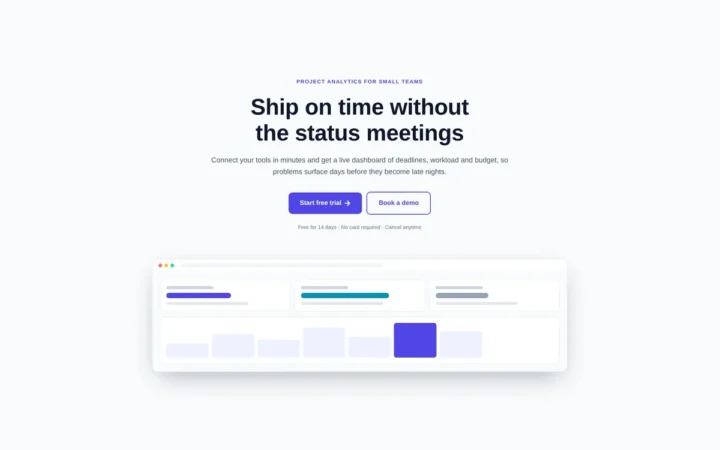
Centred SaaS hero with product window
Centred hero with a large headline, supporting text and two buttons, with optional highlights and a product window…
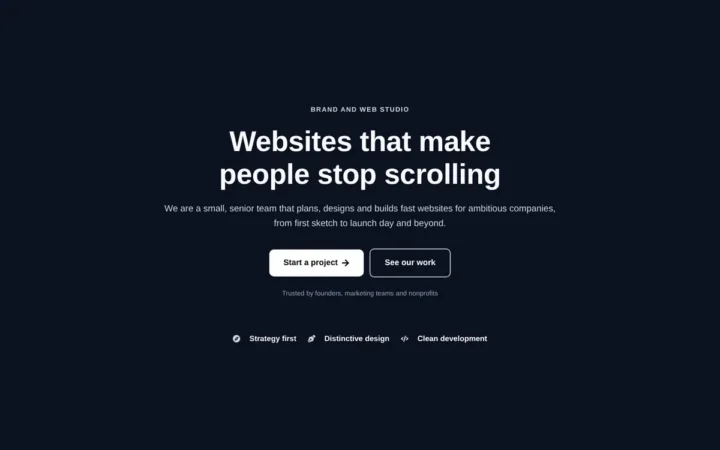
Dark studio hero with service highlights
Centred hero with a large headline, supporting text and two buttons, with optional highlights and a product window…
More guides
How to Optimise SVG Icons for Elementor
SVG icons that won't resize or recolour in Elementor usually have fixed dimensions or hard-coded colours. Learn what viewBox, width, height and…
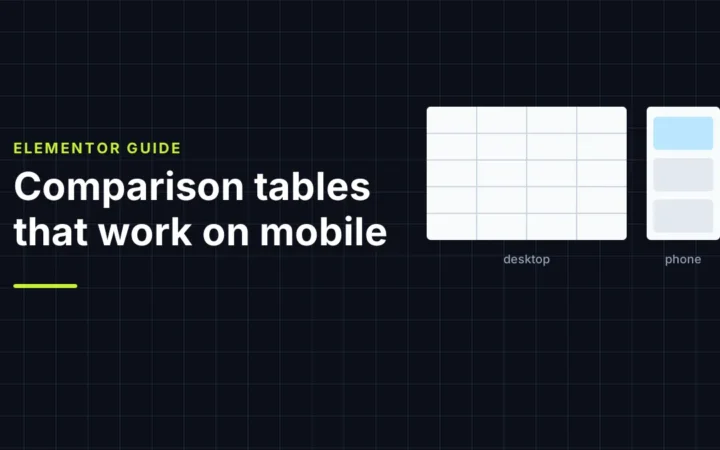
Build an Elementor Comparison Table That Works on Mobile
Comparison tables that look great on desktop often collapse on phones. Compare three mobile patterns (stacked cards, a sticky-column table and one…
Add a Trust Section Below Your Elementor Hero
The section under your hero is where visitors look for proof. Decide whether a logo strip, stats band or single testimonial fits…
Comments