
Elementor Free vs Pro: What You Can Build with the Free Version
What Elementor's free version includes, what Pro adds on each plan, a worked example of a brochure site built for free, and when upgrading is worth it.
 Keyur
10 min read

On this page
The free version of Elementor is enough to build complete, good-looking pages: landing pages, brochure sites, portfolios and blog page layouts. It includes the visual editor, Flexbox and Grid containers, about 30 basic widgets, global colours and fonts, custom breakpoints and template import. What it does not include is the Theme Builder (headers, footers, single and archive templates), the Form widget, the Popup Builder, dynamic content and custom CSS. Pro also adds more widgets, motion effects and WooCommerce building. If your site needs those, either buy Pro or plan a free alternative for each one before you start.
This post sets out what each version includes, based on Elementor's own comparison in its help centre (updated September 2026) and the free plugin's source code. It also covers what you can realistically build without paying, and how to fill the gaps. A worked example then maps a typical small-business site onto free features.
What the free version includes
Elementor describes its free plugin, which it calls Elementor Core, as including "everything you need to get started". In practice that covers:
Table: Elementor free features (from Elementor's help centre and plugin code)
| Area | Included in free |
|---|---|
| Editor | Drag-and-drop visual editor, undo and redo, revision history, navigator, page settings |
| Layout | Flexbox and Grid containers, shape dividers, background overlays and gradients, box and text shadows |
| Responsive design | Per-device settings, custom breakpoints, hide per device, reverse or reorder items |
| Design system | Site Settings for global colours, global fonts, typography and layout |
| Widgets | Heading, Image, Text Editor, Video, Button, Divider, Spacer, Google Maps, Icon, Image Box, Icon Box, Star Rating, Image Carousel, Basic Gallery, Icon List, Counter, Progress Bar, Testimonial, Tabs, Accordion, Toggle, Social Icons, Alert, SoundCloud, Shortcode, HTML, Menu Anchor, Sidebar, plus the WordPress widgets |
| Motion | Entrance animations and hover effects |
| Templates | Template library, saving your own templates, import and export of template files |
| Other | Maintenance mode, the Canvas page template, off-canvas content |
Elementor's newer Atomic Editor also works in the free plugin, with Variables and Classes for building a design system. Elementor's documentation lists size variables as a Pro feature.
<h2
What Pro adds
Pro is a separate plugin that runs on top of the free one. Elementor's installation guide says you must have Elementor Core installed and activated first. Elementor's comparison splits Pro features by plan:
Table: What Elementor Pro adds (Elementor's comparison, September 2026)
| Feature | Essential plan | Advanced, Advanced Solo and Expert plans |
|---|---|---|
| Theme Builder (header, footer, single, archive) | Yes | Yes |
| Form widget | Yes | Yes, plus form submissions and integrations |
| Popup Builder | Yes | Yes, with unlimited popups |
| Post, archive and site widgets (Posts, Nav Menu, Site Logo and others) | Yes | Yes |
| Marketing widgets (Slides, Price Table, Call to Action, Countdown, Flip Box and others) | Yes | Yes |
| Scrolling effects, custom fonts, custom icons | Yes | Yes |
| Custom CSS, custom code, global CSS | No | Yes |
| Dynamic content integrations (ACF, Pods) | No | Yes |
| WooCommerce Builder and shop widgets | No | Yes |
| Role Manager and Notes | No | Yes |
Elementor's comparison counts 50 widgets in the Essential plan and 82 in the higher plans. Its pricing page described plans as "starting from $60/year" when we checked in October 2026, with Essential and Advanced Solo for one site, Advanced for three and Expert for 25. Check the current page before you buy, because prices and plan contents change.
One detail matters for long-term planning: Elementor's help centre states that when a Pro subscription expires, Pro features stop immediately until you renew. A site built around Pro widgets and the Theme Builder depends on keeping the subscription.
What you can build with the free version
- Landing pages for campaigns, with hero sections, feature grids, testimonials and calls to action.
- Brochure sites of a few pages: home, about, services, contact.
- Portfolios built from image galleries, image boxes and project pages.
- Page layouts on a blog, such as a designed home page and about page, with posts still using the theme's templates.
- Event or launch pages with video, maps and FAQs built from Accordion or Toggle.
What you cannot do with free alone is design the parts of the site that sit outside the page content: the header, the footer, the blog post template and archive pages. Those come from your theme.
<h2
Before you decide
- List the parts of the site you need to design. If headers, footers or post templates must be built visually in Elementor, you need Pro or a theme that gives you enough control.
- List interactive features: forms, popups, sliders, countdowns, pricing tables, shop pages.
- Check your theme. A lightweight theme with header and footer options in the Customizer or Site Editor covers much of what the Theme Builder does for simple sites.
- Check the templates you want to use. Many templates sold or shared online include Pro widgets.
- Think about maintenance. Each third-party plugin you use to replace a Pro feature is another plugin to update.
Filling the gaps without Pro
Table: Free alternatives to common Pro features
| Need | Free approach | Trade-off |
|---|---|---|
| Contact form | A form plugin, placed with the Shortcode widget | Styling happens in the form plugin, not Elementor |
| Header and footer | Your theme's header and footer settings | Less design freedom; not edited visually in Elementor |
| Blog post and archive layouts | Your theme's templates | Posts look like the theme, not your Elementor pages |
| Custom CSS | Your theme's Additional CSS (Customizer) or the Site Editor's Additional CSS (block themes), targeting classes you add in Elementor's Advanced tab | CSS lives outside the page, so document it |
| Price tables, CTAs, flip boxes | Build them from containers, headings, text, icons and buttons | Takes longer; save them as templates to reuse |
| Custom fonts | Google Fonts in Site Settings, or a font loaded by your theme | Self-hosted brand fonts need theme or plugin support |
| Popups | A dedicated popup plugin | Another plugin to maintain |
| Online shop pages | WooCommerce's own block templates and your theme | Shop pages are not designed in Elementor |
Third-party Elementor add-on plugins also supply extra widgets for the free version. They can be useful, but choose carefully: each adds code, and templates built with them will not open correctly on sites that do not have the same add-on.
Worked example: a five-page brochure site on Elementor free
An illustrative case: a small architecture practice needs Home, About, Services, Projects and Contact pages, a contact form, a simple header and footer, and a news section that is updated a few times a year.
Table: Mapping the brief to Elementor free
| Requirement | How it is built | Free? |
|---|---|---|
| Home page with hero, services grid, testimonials | Containers, Heading, Text, Image Box, Testimonial, Button widgets | Yes |
| Consistent colours and fonts | Site Settings global colours and fonts | Yes |
| Projects gallery | Basic Gallery or Image Carousel widget | Yes |
| Contact form | A free form plugin's shortcode in the Shortcode widget | Yes, with a second plugin |
| Office map | Google Maps widget | Yes |
| Header with logo and menu | Theme header settings | Yes, via the theme |
| News posts | Normal WordPress posts with the theme's post template | Yes, via the theme |
| Mobile layout | Per-device settings and breakpoints | Yes |
Everything in the brief can be built without Pro. The compromise is that the header, footer and news posts are styled by the theme rather than designed in Elementor. If the practice later wants a designed blog template, a newsletter popup or Elementor-styled forms, that is the point to buy Pro.
Getting the most from the free version
- Set up global styles first. Define your colours and fonts in Site Settings before building pages. Every widget then picks them up, and a brand change later is one edit rather than dozens.
- Use containers, not the old sections and columns. Flexbox and Grid containers are free and adapt better to different screens. Our guide to Elementor responsive design covers breakpoints and the common mobile fixes.
- Make headings scale. Fluid font sizes with
clamp()work in the free version through the custom unit option; see our guide to fluid typography in Elementor. - Save your own building blocks. When you build a price table or call-to-action section from basic widgets, save it to My Templates so the next one takes seconds.
- Keep the plugin count low. Choose one form plugin and, at most, one add-on pack, rather than a different plugin for each missing widget.
How to tell whether a template needs Pro
- Read the template's description. Our Elementor template library marks each free section with what it needs, and the resources archive lets you browse the full set.
- Check the file before importing. Paste or upload a template's JSON into the Elementor JSON validator. It lists the widgets used and flags Pro and add-on widgets.
- Import and preview on staging. Missing Pro widgets show as unavailable in the editor rather than rendering.
Our guide to importing an Elementor template walks through both import methods and the "widget not available" message.
Verify your setup
- Open Elementor's widget panel and confirm the widgets you planned are available. Pro widgets appear locked if Pro is not active.
- Build one complete page, then check it on desktop, tablet and mobile.
- Confirm the theme's header and footer look right with your Elementor pages, including on mobile.
- Test the contact form end to end, including that the email arrives.
- Check the page source or speed test for extra scripts from add-on plugins.
Common mistakes
- Choosing a template kit without checking whether it uses Pro widgets.
- Installing several add-on packs to replace one or two Pro widgets.
- Building with Pro, letting the subscription lapse, and finding Pro features have stopped working.
- Expecting to design headers and footers in free Elementor.
- Using the HTML widget for large amounts of custom code that would be better in a small plugin.
- Putting custom CSS inline in HTML widgets on every page instead of one stylesheet.
Troubleshooting
Table: Free vs Pro problems
| Symptom | Likely cause | Fix |
|---|---|---|
| "Widget not available" after importing a template | The template uses a Pro or add-on widget | Replace it with free widgets, or install what it needs |
| Pro widgets show a lock icon | Pro is not installed, not connected, or the licence expired | Connect and activate Pro, or renew |
| Elementor Pro will not activate | The free plugin is missing or inactive | Install and activate Elementor first |
| Header looks different on Elementor pages | The page uses the Canvas template, which removes the theme's header | Switch the page template to the default or full width |
| No Custom CSS option in the Advanced tab | Custom CSS is a Pro feature (Advanced plan and above) | Use the theme's Additional CSS with a class |
Frequently asked questions
Is Elementor free?
Yes. The core Elementor plugin is free and includes the visual editor, containers, about 30 basic widgets, global styles, responsive settings and template import. Elementor Pro is a paid add-on.
Can I build a whole website with Elementor free?
You can build every page's content. Headers, footers, post templates and archives come from your theme, because the Theme Builder is a Pro feature.
Does Elementor free include a form widget?
No. The Form widget is Pro. With the free version, use a form plugin and place its shortcode with the Shortcode widget.
Can I add custom CSS in Elementor free?
Not in the Advanced tab; Elementor lists custom CSS as a Pro feature on the Advanced plan and above. Add a class to the element and write the CSS in your theme's Additional CSS.
Do I need Elementor free installed to use Pro?
Yes. Elementor's installation guide says Elementor Core must be installed and activated before Elementor Pro.
What happens to my site if Pro expires?
Elementor's help centre says Pro features stop immediately when the subscription expires, until you renew or connect a new licence. Plan for that if your design depends on Pro.
Are custom breakpoints a Pro feature?
No. Additional breakpoints and per-device settings are part of the free plugin, under Site Settings → Layout → Breakpoints.
Which Pro plan do I need for WooCommerce?
Elementor's comparison lists the WooCommerce Builder and shop widgets on the Advanced plans and above, not on Essential.
Are free Elementor templates really free to use?
Those built only with free widgets work without Pro. Check each template's requirements, or run its JSON through a validator that flags Pro widgets, before importing.
When is it worth upgrading to Pro?
When you need to design the header, footer or post templates visually, want Elementor-styled forms and popups, or need dynamic content or WooCommerce templates. If you need none of those, free plus a good theme is often enough.
Next step
List the pages and features your site needs and check each against the tables above. Then start from free sections in our Elementor template library, and run any outside template through the Elementor JSON validator before importing it.
Related free tools for this topic
WordPress Snippet Generator
Generate clean, escaped WordPress code for the tasks developers repeat most: enqueueing scripts and styles, shortcodes, widget areas,…
WordPress Salt & Security Key Generator
Generate a fresh set of WordPress security keys and salts in your browser, ready to paste into wp-config.php.
wp-config.php Generator
Generate a complete wp-config.php with database details, newly generated security keys, debug settings and useful constants. Keys are…
Custom Taxonomy Generator
Generate clean, translation-ready register_taxonomy() code for WordPress, with category-style or tag-style behaviour, block editor support and admin columns.
HTTP Security Headers Generator
Generate recommended HTTP security headers for your site and get them as Apache, Nginx or WordPress PHP code.
301 Redirect Generator
Paste old and new URLs to generate exact-match redirect rules for Apache (.htaccess), Nginx or a WordPress snippet.…
Related resources

SaaS hero with dashboard preview
Two-column hero: headline, supporting text, two buttons and a trust line beside a visual panel. Stacks to one…
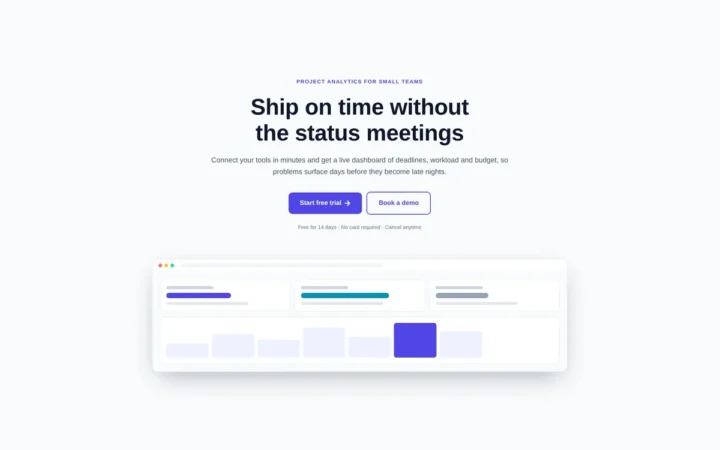
Centred SaaS hero with product window
Centred hero with a large headline, supporting text and two buttons, with optional highlights and a product window…
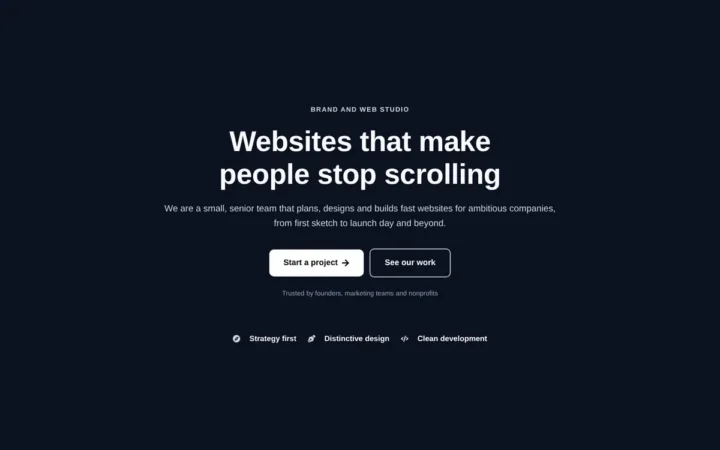
Dark studio hero with service highlights
Centred hero with a large headline, supporting text and two buttons, with optional highlights and a product window…
Related articles
Custom Box Shadows and Gradients in Elementor
What Elementor's free shadow and gradient controls can do, where they stop (one shadow, two colours), and copy-ready CSS for layered shadows,…

Using CSS Variables in Elementor
How Elementor names and scopes its global colour and font variables, how to define and use your own in Free and Pro,…

Building an Elementor Hero Section That Works on Mobile
A mobile-first Elementor hero, step by step: per-device background images (tested: phones download only the mobile image), overlay darkness for readable text,…
Related guides
How Long Should a Meta Title Be? Pixels vs Characters Explained
"Keep it under 60 characters" is only half right. Google cuts titles by pixel width, not character count. Learn how to write…
The Default WordPress .htaccess File (and Safe Additions)
The exact .htaccess rules WordPress needs for pretty permalinks, what each line does, tested additions for HTTPS and file protection, and a…
Fluid Typography in Elementor with clamp()
Setting a heading to 56 px on desktop, 44 px on tablet and 32 px on mobile works, but text jumps between…
Comments