
Start With Your Site Goals, Not Aesthetics
Most people choose a WordPress theme by scrolling through screenshots until something looks pretty. This is backwards. A theme that looks beautiful but loads slowly, conflicts with your SEO plugin, or lacks the layout features you need will cost you more in workarounds and lost time than the original theme cost to buy.
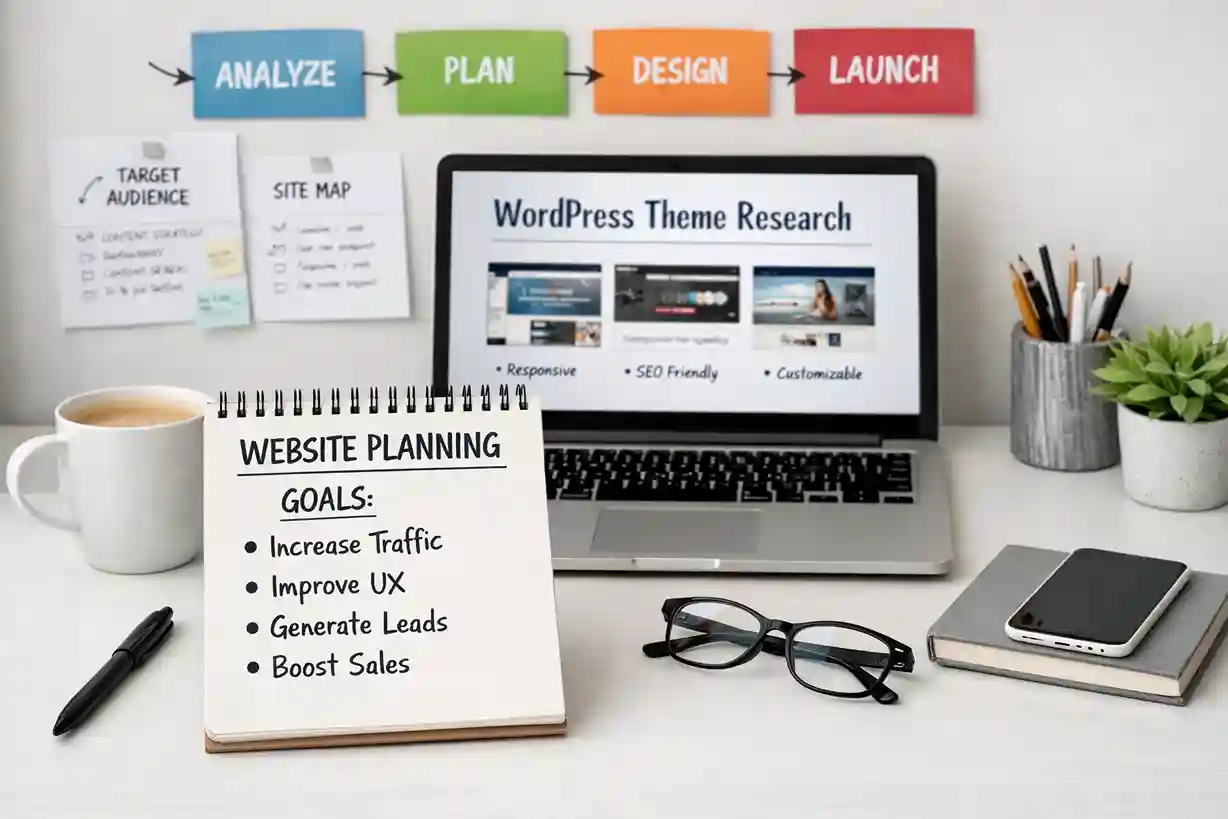
Start by defining what your site needs to do. List three to five concrete goals. For example: rank in Google for local service keywords, capture email leads via a homepage opt-in, display a portfolio of 20+ past projects, sell digital products through WooCommerce, and handle 2 to 3 new blog posts per week. Once you have specific goals, you can evaluate whether a theme’s actual features – not its screenshots – match your requirements.
The 5 Must-Check Criteria Before Installing Any Theme
| Criterion | How to Check | Minimum Standard |
|---|---|---|
| Page Speed | Run the live demo through Google PageSpeed (Mobile) | Mobile score 85+ |
| Last Updated | Check changelog or WordPress.org listing | Within the last 3 months |
| Active Installs | WordPress.org listing or author’s website | 10,000+ (for unknown authors) |
| WooCommerce Ready | Theme description or demo check | If you sell anything online |
| Support Quality | Browse support forum or reviews | Responses within 48 hours |
How to Read a Theme Demo Properly
Theme demos are marketing. The homepage looks great because a designer chose a perfect image and spent hours on the copy. Your job is to see through the marketing and evaluate the underlying structure:
- Check the inner pages – about, services, contact, blog post. These show the theme’s real capabilities
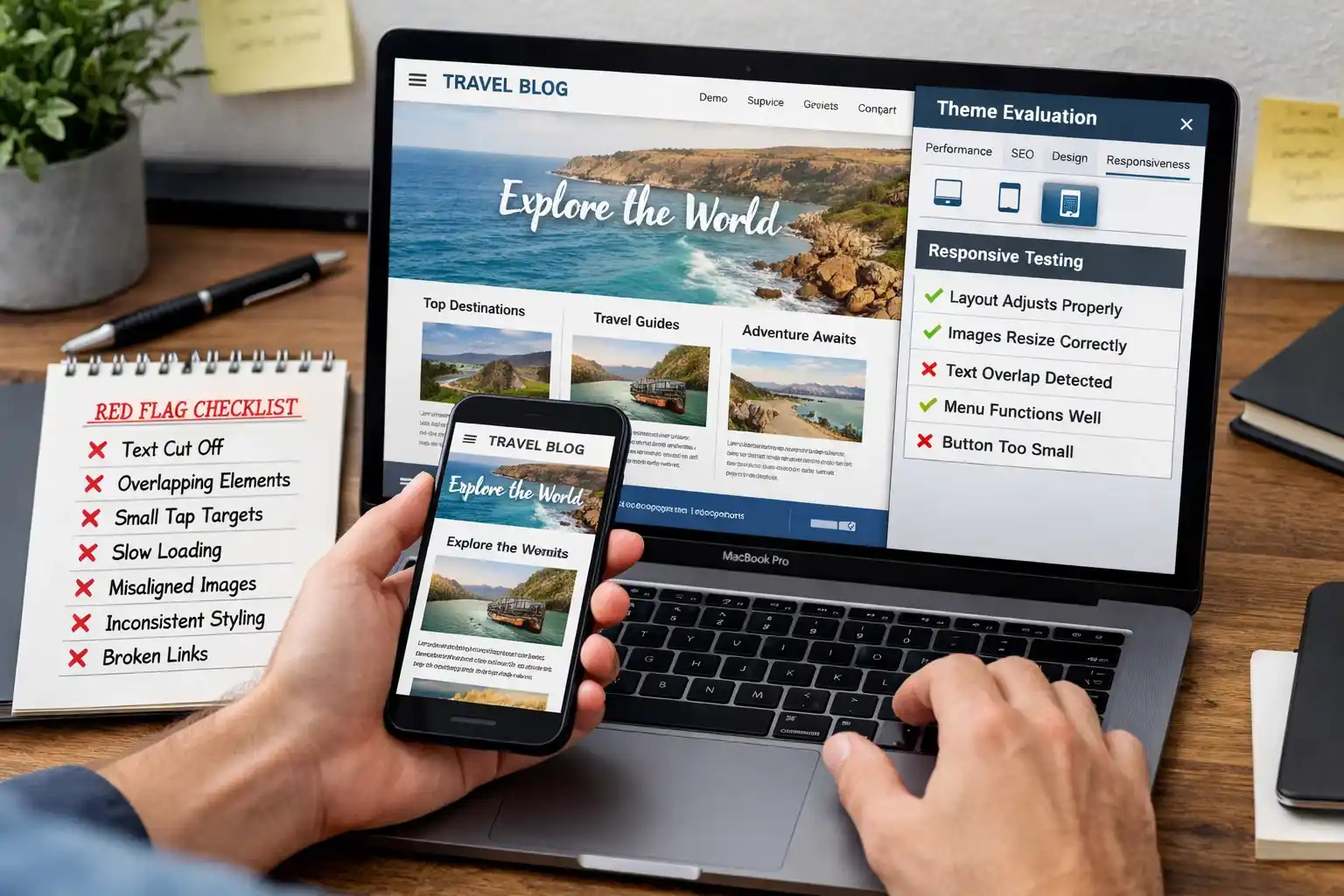
- View the demo on your phone, not just desktop – resize your browser or use Chrome’s device emulation
- Run PageSpeed on the demo URL – this shows actual performance, not potential performance
- Look at what’s NOT in the demo – does the theme have a sidebar option if you need one?
- Check how many plugins the demo requires – some themes need 5 to 10 plugins to match their demo look
Red Flags to Avoid When Choosing a Theme
- Last updated more than 6 months ago – security risk and possible WordPress compatibility issues
- Low rating with no developer responses in the support forum – indicates poor support
- Demo loads in more than 4 seconds on mobile – performance likely to get worse when you add plugins
- No documentation or setup guide – you’ll be troubleshooting alone
- ‘Multipurpose’ with no specific industry demos – often means shallow feature implementation everywhere
- Requires purchase of bundled plugins to function – creates update and license complications
The Installation and Trial Process
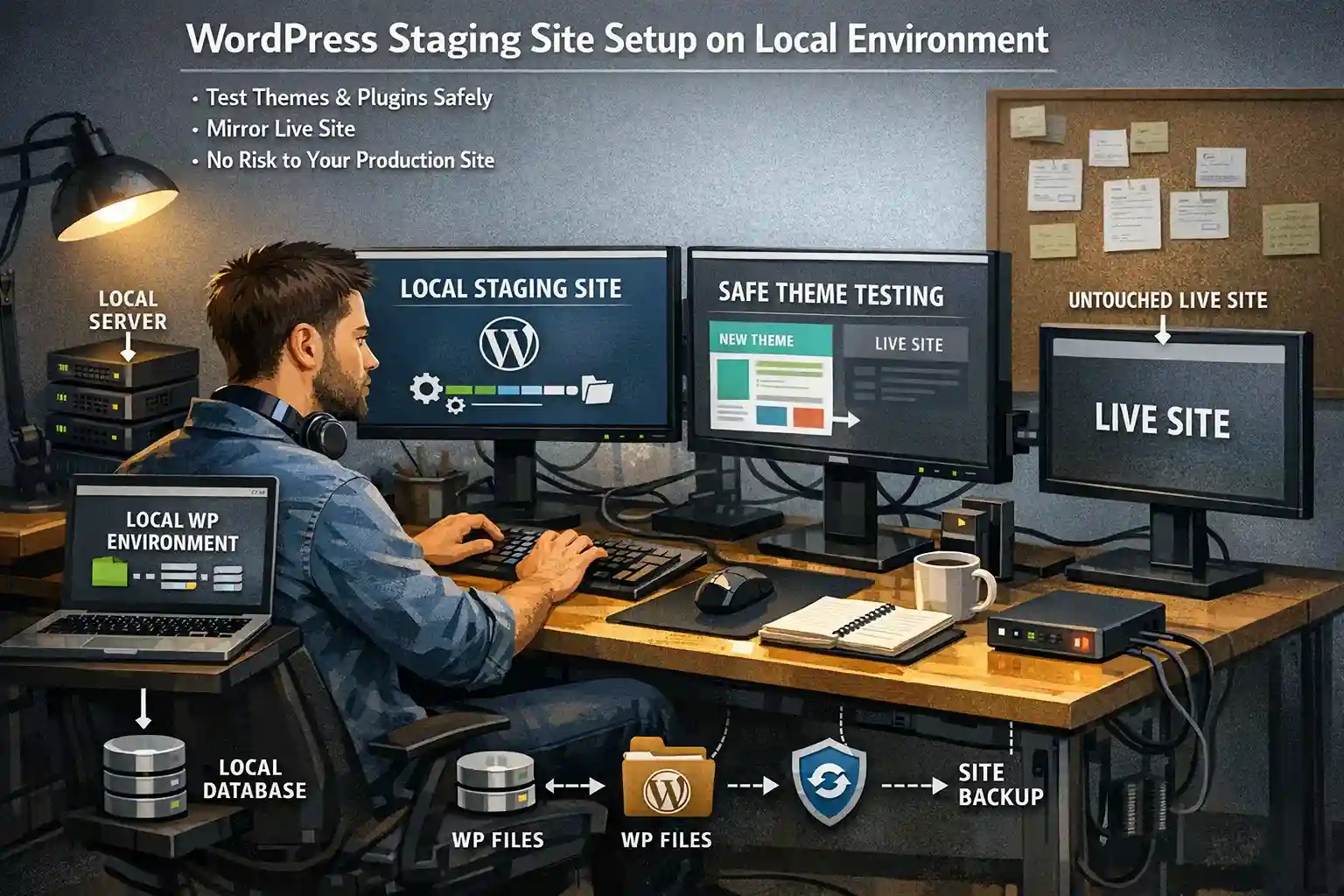
- Install the theme on a staging or local site first
- Import a demo or starter template if available
- Test your specific content – don’t just test with demo content
- Run PageSpeed after adding your plugins
- Test mobile on a real device, not just browser resize
- Check contact forms, WooCommerce (if applicable), and your SEO plugin settings
Switching Themes Later: What to Expect
Switching themes is possible but has costs you should understand upfront. Your content (posts, pages, images, products) transfers safely – it lives in the database, not the theme files. What doesn’t automatically transfer: custom CSS you’ve added, widget content, theme-specific page builder layouts, and any settings in the theme’s options panel.
The biggest risk with switching themes is page builder lock-in. Sites built with Divi’s builder or WPBakery’s shortcodes are difficult to migrate to a different theme because the content depends on those builders’ code. If long-term flexibility matters, build with Gutenberg blocks which work across all block-compatible themes.
Frequently Asked Questions
How long does it take to set up a WordPress theme?
A basic theme with a starter template import takes 1-3 hours to get to a launch-ready state. A custom-configured theme with unique layouts, custom header/footer, and your specific content takes 1-3 days. Complex business sites with multiple custom page templates and advanced configurations take 1-2 weeks. Factor this into your timeline planning.
Should I use a child theme?
If you plan to modify the theme’s code files (PHP templates, CSS), yes. A child theme protects your changes from being overwritten during theme updates. If you’re only customising through the WordPress Customizer or theme options panel, a child theme isn’t strictly necessary – those settings are stored in the database, not theme files.
How do I test a theme before buying?
Run the theme’s official demo URL through Google PageSpeed Insights (mobile). Check the support forum on WordPress.org or ThemeForest for common issues and developer response times. Look for video tutorials or documentation quality. For premium themes, look for a money-back guarantee (most reputable theme shops offer 14-30 days).
What’s the difference between a theme and a page builder?
A theme controls your site’s overall design, layout, and styling – header, footer, typography, colour scheme. A page builder (Elementor, Divi, Bricks) lets you design the content area of individual pages visually using drag-and-drop. Many themes include a page builder; others are designed to work with external builders. In 2026, WordPress’s built-in block editor is increasingly capable of replacing page builders for most use cases.
How do I know if a WordPress theme is secure?
Check the theme’s update history – themes updated regularly are more likely to patch security vulnerabilities promptly. Verify the theme is from a reputable source (WordPress.org or established marketplaces like ThemeForest). Avoid nulled (pirated) themes entirely – they frequently contain malicious code. After installing any theme, run a Wordfence scan to check for known vulnerabilities.