
Why Every WordPress Site Needs Automated Backups
WordPress sites get hacked, plugins break, servers crash, and human mistakes happen. Any site that doesn’t have automated backups is one bad day away from losing everything – months of content, customer data, product configurations, and revenue. The cost of a backup plugin is measured in dollars per year. The cost of losing your site is measured in days of recovery work and potentially lost income.
In 2026, there is no acceptable excuse for not having automated WordPress backups. Managed hosts like WP Engine and Kinsta include daily backups, but even those aren’t a substitute for having your own independent backup copy in cloud storage you control. If something goes wrong at the hosting level, you want a backup that isn’t stored on the same server that just failed.
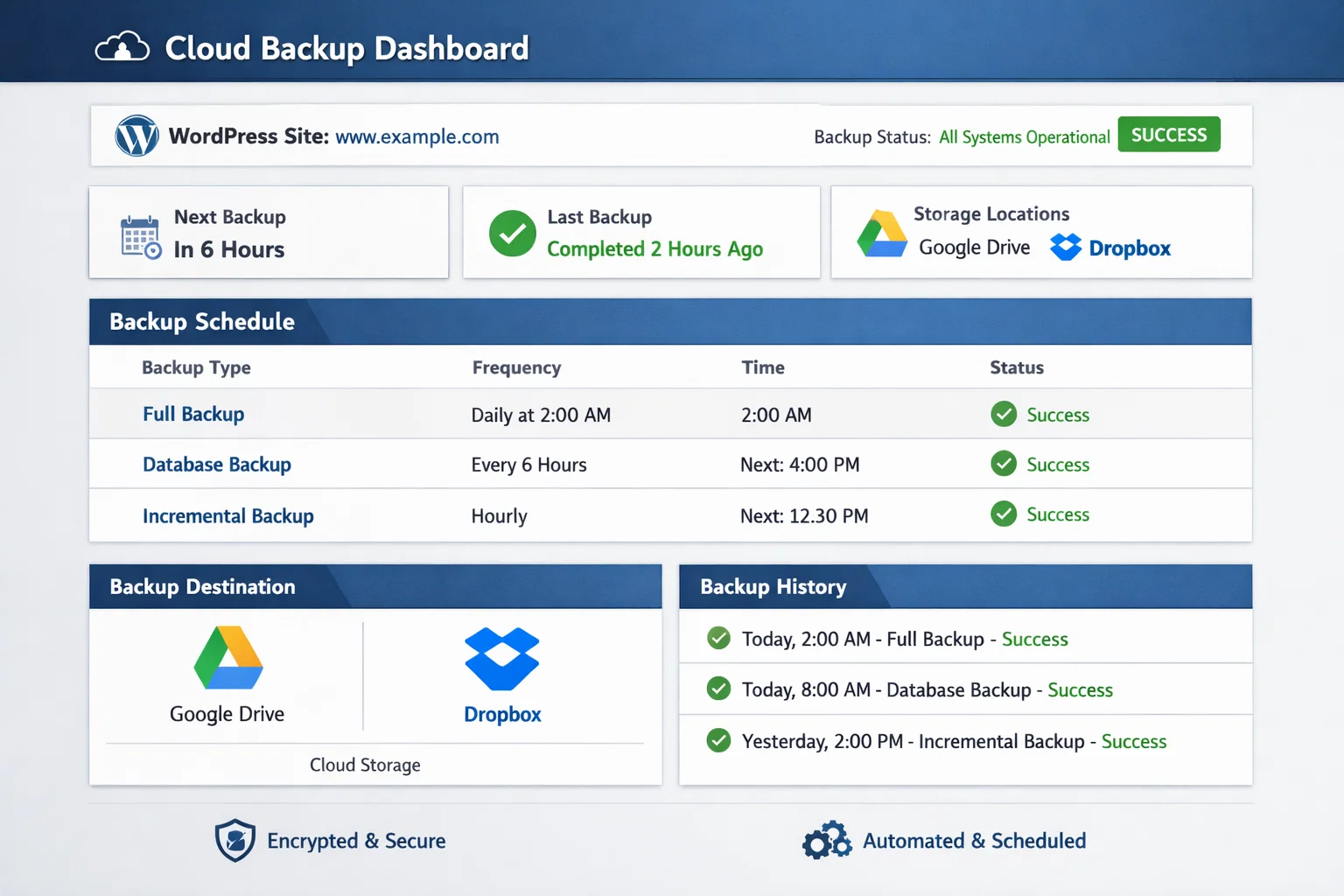
The gold standard backup strategy is the 3-2-1 rule: three copies of your data, on two different storage types, with one copy offsite. For WordPress, this typically means: your live site, a backup stored in Google Drive or Dropbox, and another in Amazon S3 or Backblaze. A good backup plugin makes this automatic.
Top WordPress Backup Plugins in 2026
1. UpdraftPlus – Best Overall Backup Plugin
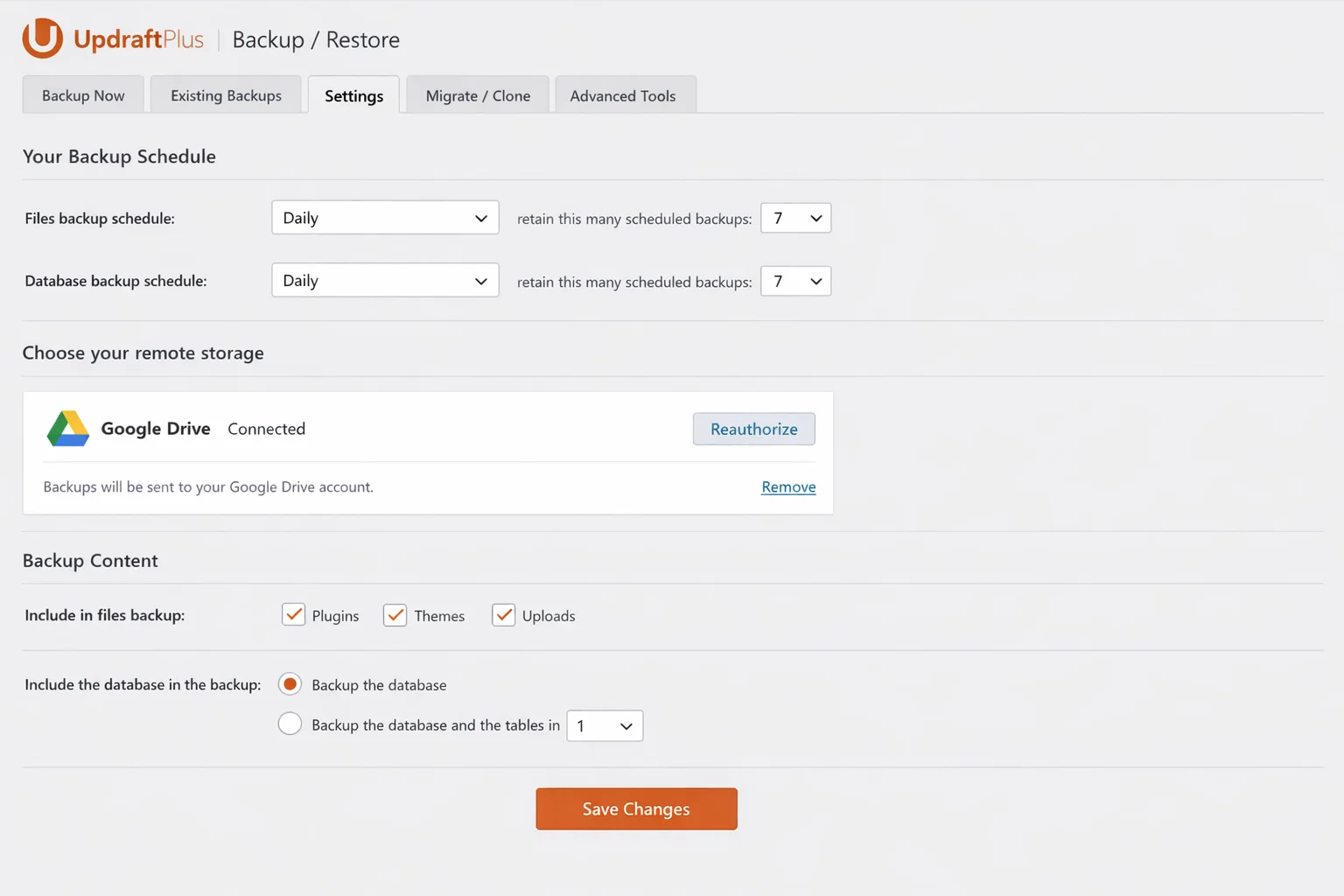
UpdraftPlus is the most popular WordPress backup plugin with over 3 million active installs, and the reputation is deserved. The free version covers the essentials: manual and scheduled backups to cloud storage (Google Drive, Dropbox, Amazon S3, FTP, and more), full site backups including files and database, and one-click restoration from within WordPress.
The paid upgrade adds incremental backups, multisite support, a migration tool, advanced reporting, and better restoration controls. For most sites, the free version is sufficient.
Free Version: Yes | Incremental Backups: Pro only | Real-Time: No | Best for: Most WordPress sites
2. BlogVault – Best for Agencies and Multiple Sites
BlogVault is purpose-built for sites that need reliable, managed backups without manual configuration. It runs backups on BlogVault’s own servers rather than your hosting – meaning backups don’t consume your server resources or storage. Incremental backups run daily, the restoration process is genuinely fast, and the dashboard gives you a clear view of backup status across multiple sites.
Free Version: No (14-day trial) | Incremental Backups: Yes | Real-Time: No | Best for: Agencies, multiple sites
3. Jetpack Backup (VaultPress) – Best for VIP Speed
Jetpack Backup’s real-time backup option is the most technically impressive option available. Rather than backing up on a schedule, it records every single change to your database in real-time – new posts, orders, comments, settings changes. If your site gets hacked or breaks, you can restore to any specific point in time, including one minute before the issue occurred.
Free Version: No | Incremental Backups: Yes | Real-Time: Yes | Best for: High-traffic stores, news sites
4. Duplicator Pro – Best for Site Migration + Backup
Duplicator Pro serves double duty as a backup plugin and a migration tool. If you frequently move WordPress sites between hosts, clone development environments, or build template sites to duplicate for clients, Duplicator Pro handles all of that alongside standard backup functionality.
Free Version: Yes (migration only) | Incremental Backups: Pro only | Best for: Sites needing migration + backup
5. BackWPup – Best Free Alternative to UpdraftPlus
BackWPup is a solid free backup plugin that covers the basics well. Scheduled full backups, multiple cloud storage options, database optimization, XML export, and log monitoring are all included at no cost. Good choice for budget-conscious site owners who need more than a basic backup solution.
Free Version: Yes | Incremental Backups: No | Best for: Budget-conscious site owners
Backup Plugin Comparison Table
| Plugin | Free Version | Incremental Backups | Real-Time Option | Best For |
|---|---|---|---|---|
| UpdraftPlus | Yes (scheduled) | Pro only | No | Most WordPress sites |
| BlogVault | No (14-day trial) | Yes | No | Agencies, multiple sites |
| Jetpack Backup | No | Yes | Yes | High-traffic stores, news sites |
| Duplicator Pro | Yes (migration only) | Pro only | No | Sites needing migration + backup |
| BackWPup | Yes | No | No | Budget-conscious site owners |
What a Good Backup Strategy Looks Like
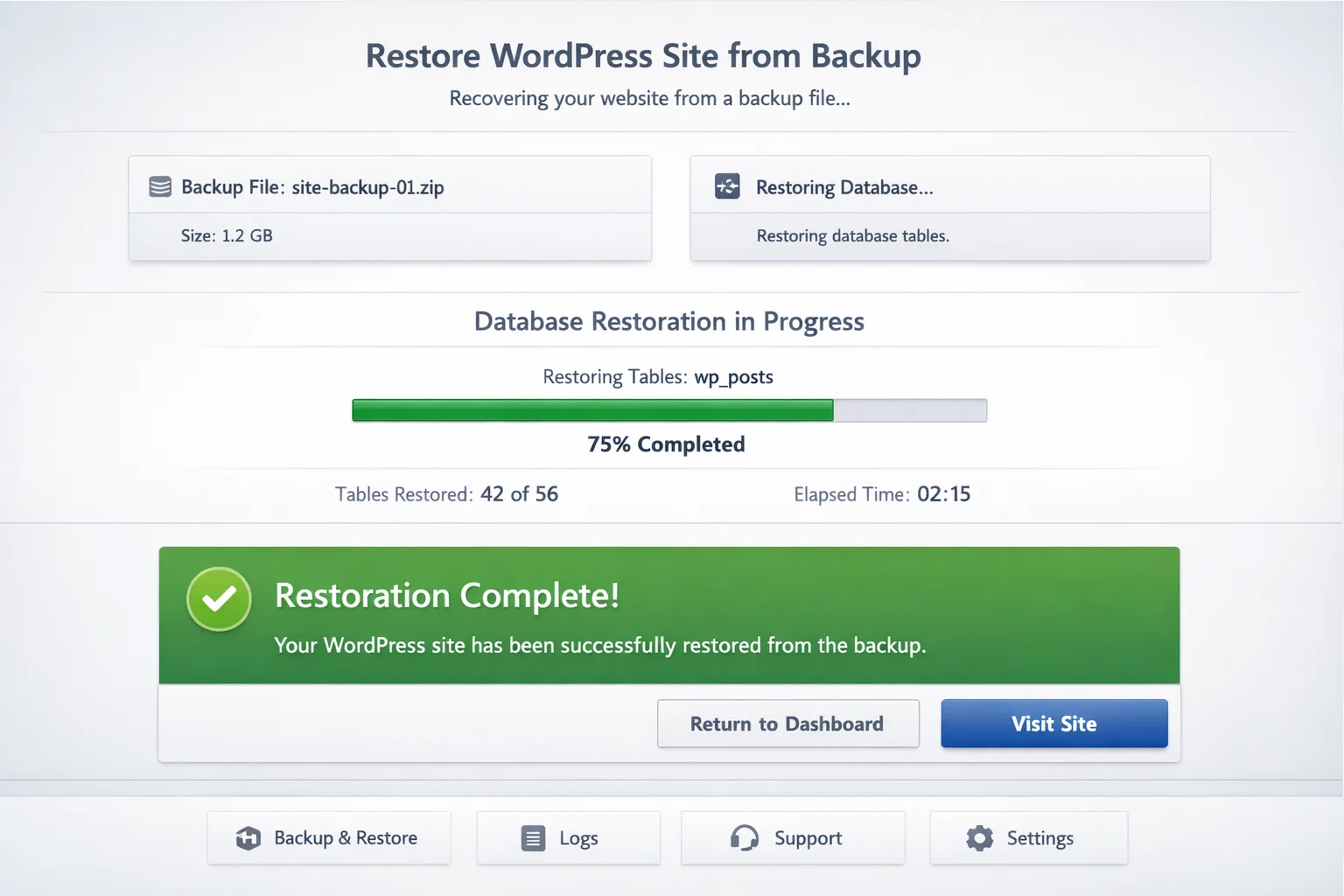
- Daily full backup of files and database, stored in Google Drive or Amazon S3
- Weekly backup stored in a second location (Dropbox or Backblaze)
- Backup before every plugin update, theme update, or major content change
- Monthly restoration test – actually download and restore a backup to a staging site
- Keep at least 30 days of backup history
- For WooCommerce stores: real-time database backup to capture orders between scheduled backups
Cloud Storage Options for WordPress Backups
| Storage Option | Free Storage | Cost | Best For |
|---|---|---|---|
| Google Drive | 15GB | $3/mo (100GB) | Personal and small business sites |
| Dropbox | 2GB | $10/mo (2TB) | Teams with existing Dropbox accounts |
| Amazon S3 | 5GB (12 months) | ~$0.023/GB/mo | Large sites, agencies, technical users |
| Backblaze B2 | 10GB | $0.006/GB/mo | Budget-conscious high-storage needs |
| OneDrive | 5GB | $2/mo (100GB) | Microsoft ecosystem users |
Frequently Asked Questions
How often should I back up my WordPress site?
For most business sites and blogs: daily automated backups at minimum. For WooCommerce stores with regular orders: real-time or at least hourly database backups. Always run a manual backup immediately before any plugin update, theme change, or major content restructure.
Is my hosting provider’s backup enough, or do I need a plugin?
Your host’s backups are a safety net, not a complete strategy. The problem is single point of failure: if something goes wrong at the server or hosting account level, those backups may be inaccessible too. A plugin that sends copies to Google Drive or Amazon S3 – storage you control independently – gives you a genuinely separate recovery option.
What’s the difference between full backups and incremental backups?
A full backup copies your entire site every time it runs. An incremental backup only copies what has changed since the last backup. For small sites, full backups are fine. For larger sites (multiple GB), incremental backups run faster, use less storage, and put less load on your server.
Can I restore my WordPress site if I’ve lost access to the dashboard?
Yes. With UpdraftPlus, you can restore via FTP. Jetpack Backup and BlogVault allow restoration from their own external dashboards without needing WordPress admin access at all – which is exactly the scenario where that capability matters most.
How long should I keep backup history?
At least 30 days. Many hacks go undetected for days or weeks – if you only keep 7 days of backups and discover the compromise on day 10, you have no clean version to restore to. Storage is cheap; the peace of mind is worth it.
Is UpdraftPlus free version good enough for most sites?
For personal blogs, small business sites, and portfolios: yes, the free version is perfectly capable. It handles scheduled backups to Google Drive, Dropbox, and Amazon S3, full file and database backups, and one-click restoration from within WordPress. The paid upgrade earns its cost for larger sites that benefit from incremental backups or multisite support.