
How to Add a Favicon (Site Icon) in WordPress
Set a favicon with WordPress's Site Icon, see exactly which sizes and tags it generates (tested on WordPress 7.1.3), and fix icons that do not update in browsers or Google.
 Keyur
9 min read

On this page
To add a favicon in WordPress, upload a square image of at least 512 × 512 pixels as the Site Icon. In current versions that is under Settings → General; classic themes also offer it in Appearance → Customize → Site Identity. WordPress then creates the smaller sizes it needs and adds the icon tags to every page. You do not need a plugin or a separate favicon.ico file for most sites. If the old icon still shows, it is almost always browser or search engine caching.
This post walks through the setup, explains exactly what WordPress outputs, and covers image preparation, the cases where you do want your own favicon.ico, and how Google picks the favicon it shows in search results. We set a Site Icon on a WordPress 7.1.3 test site and recorded the tags and files WordPress produced, so you can check your own site against them.
What a favicon is used for
The favicon is the small icon that represents your site in browser tabs, bookmarks, history, phone home screens and, often, beside your site name in Google's search results. WordPress calls it the Site Icon, and its settings screen describes it as "what you see in browser tabs, bookmark bars, and within the WordPress mobile apps".
<h2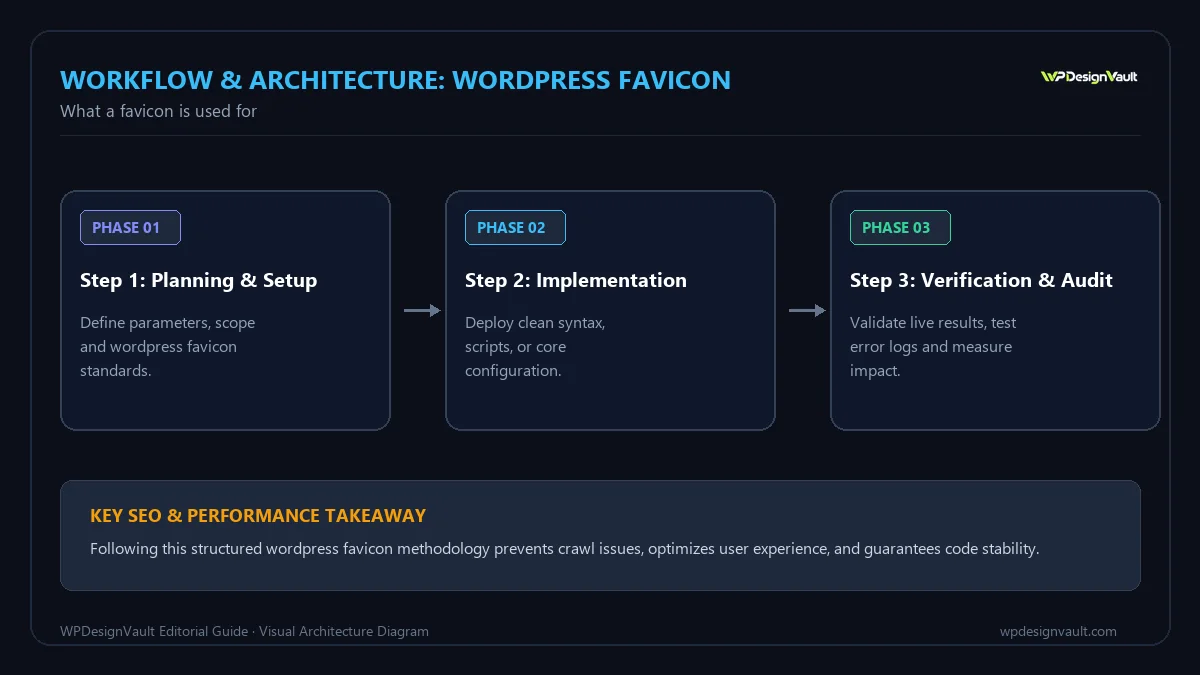
Before you start
- A square image, at least 512 × 512 pixels. WordPress's settings text asks for exactly that. PNG works well; a transparent background suits most logos.
- A simple design. The icon is shown as small as 16 or 32 pixels. A full logo with words usually becomes unreadable. Use a symbol, a monogram or one or two letters.
- Check the edges. Some platforms round the corners or crop to a circle. Keep the important part inside the centre.
- Know your theme type. Block themes and classic themes put the setting in slightly different places.
If you only have a wide logo, create a square version first. The favicon generator can build icons from an image or from one or two letters, and the image resizer can produce an exact 512 × 512 canvas.
Step 1: set the Site Icon
- Go to Settings → General in the dashboard and find Site Icon. In a classic theme you can also use Appearance → Customize → Site Identity.
- Click to choose an image, then upload or pick your square image from the Media Library.
- If the image is larger than 512 × 512 or not square, WordPress offers a cropping step. Crop to the square you want and confirm.
- Save the settings.
- Open your site in a new private window and look at the browser tab.
In block themes, the Site Logo block also has an option to use the logo as the site icon. That is convenient if your logo is already a square symbol, but a dedicated icon image usually looks sharper at small sizes.
<h2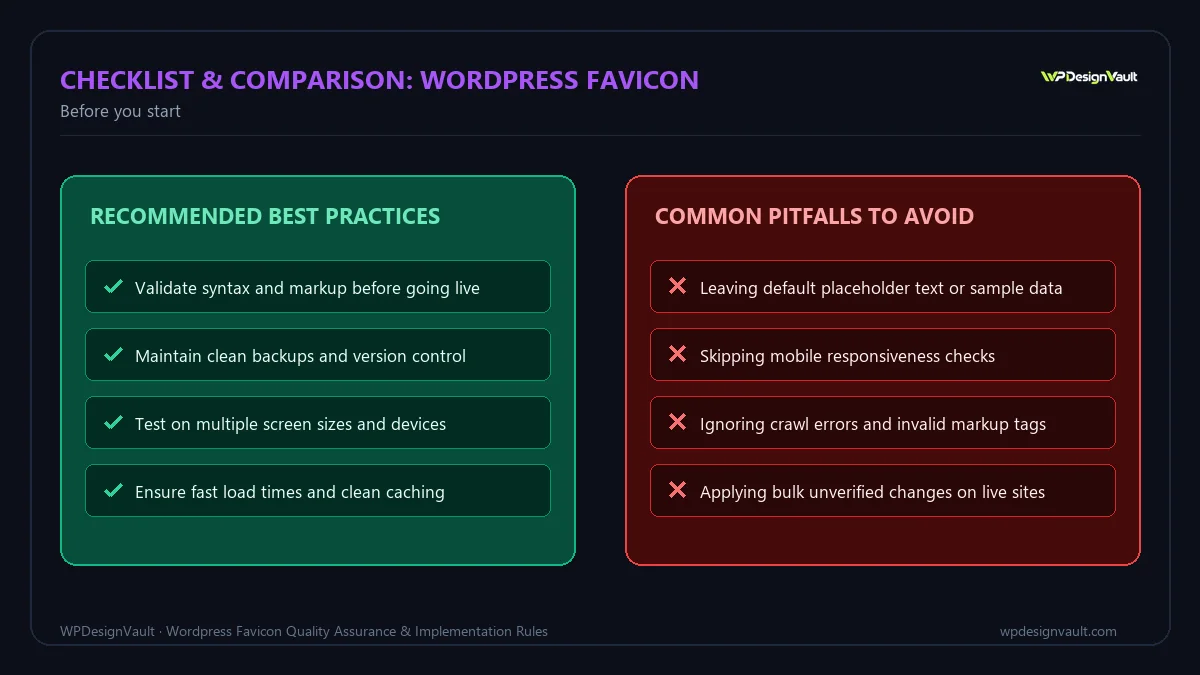
What WordPress outputs
On our WordPress 7.1.3 test site, setting a 512 × 512 PNG as the Site Icon (with WordPress's cropping step) created these extra image sizes: 270, 192, 180, 64 and 32 pixels. WordPress then added four tags to the <head> of every page:
<link rel="icon" href=".../icon512-32x32.png" sizes="32x32" />
<link rel="icon" href=".../icon512-192x192.png" sizes="192x192" />
<link rel="apple-touch-icon" href=".../icon512-180x180.png" />
<meta name="msapplication-TileImage" content=".../icon512-270x270.png" />
Table: The Site Icon files and where they are used
| Size | Tag | Used by |
|---|---|---|
| 32 × 32 | rel="icon" |
Browser tabs and bookmarks |
| 192 × 192 | rel="icon" |
Android home screens and high-density displays |
| 180 × 180 | rel="apple-touch-icon" |
iPhone and iPad home screens |
| 270 × 270 | msapplication-TileImage |
Windows pinned tiles |
| 512 × 512 | (the cropped original) | Source for the other sizes and the WordPress apps |
What about /favicon.ico?
Browsers and some tools request /favicon.ico directly. If no real file exists there, WordPress handles the request itself. On our test site, /favicon.ico returned a 302 redirect to the 32 × 32 Site Icon PNG. Without a Site Icon, WordPress's code redirects to a default WordPress logo image instead. On servers where static files are handled before WordPress, a missing favicon.ico may return a 404 instead, which is harmless but shows up in logs.
When to add your own favicon.ico
The Site Icon covers most needs. Upload a real favicon.ico to the web root (the folder containing wp-config.php) if:
- your server logs fill with 404 errors for
/favicon.ico; - you need a multi-size ICO for older software or intranet tools;
- a security or caching layer blocks the redirect.
A real file in the web root is served directly and takes priority over WordPress's redirect. The favicon generator produces a genuine favicon.ico containing 16, 32 and 48 pixel images, plus PNG sizes and a web manifest. If you add its HTML snippet as well as a Site Icon, you will have two sets of tags, so pick one approach.
Worked example: preparing a monogram icon
An illustrative studio called "Northside Design" has a wide wordmark. At 32 pixels, the word "Northside" is unreadable. The fix:
- Create a 512 × 512 canvas in the brand's primary colour.
- Place a bold white "N" in the centre, filling about 60% of the height, so it survives rounding and cropping.
- Export as PNG.
- Set it as the Site Icon and crop as needed.
- Check it in a browser tab, on a light and a dark browser theme, and on a phone's home screen.
If the icon disappears against a dark browser tab bar, add a contrasting background or outline rather than using a transparent icon with dark lines.
Formats, staging sites and multisite
- Format. Upload PNG for the Site Icon. It keeps sharp edges and transparency at small sizes. JPEG works but blurs edges and has no transparency; our guide to WebP, JPG and PNG explains the trade-offs. If your source is in another format, the image converter can save it as PNG.
- Staging sites. A different icon on staging, such as the same mark on a bright orange background, makes it obvious which tab is the test site and helps prevent edits in the wrong place.
- Multisite. Each site in a WordPress network has its own Site Icon setting, so set one per site.
- Dark mode. Browsers show tabs on light and dark backgrounds. A solid square or a light outline keeps the icon visible on both.
- Brand changes. When you rebrand, upload the new icon as a new file rather than overwriting the old one, so caches and search engines see a new URL.
How Google chooses your favicon in search
Google's favicon documentation sets these rules:
- Google shows one favicon per site, by hostname.
example.comandshop.example.comcan each have one; a subfolder such asexample.com/blogcannot have its own. - The favicon must be referenced from the home page with a supported
relvalue, such asiconorapple-touch-icon. WordPress's Site Icon tags meet this. - It must be square (1:1) and at least 8 × 8 pixels. Google recommends larger than 48 × 48 so it looks good on different surfaces.
- Googlebot-Image must be able to crawl the icon file, and Googlebot must be able to crawl the home page. Do not block
/wp-content/uploads/in robots.txt; our guide to robots.txt for WordPress explains why. - The favicon URL should be stable. Changing it often can delay updates.
- Google may take several days to several weeks to recrawl and show a new icon. You can request indexing of the home page in Search Console's URL Inspection tool.
Google does not guarantee a favicon appears, even when the guidelines are met, and it replaces inappropriate icons with a default one.
Verify your favicon
- Look at the page source of your home page and find the
rel="icon"andapple-touch-icontags. There should be one set, not one from WordPress and another from a theme or plugin. - Open each icon URL in a private window to confirm it loads.
- Check the response codes for the icon URL and
/favicon.icowith the HTTP status checker. Expect 200 for the PNGs and either 200 or a redirect for/favicon.ico. - Test on a phone by adding the site to the home screen.
- Allow for caching. Browsers cache favicons aggressively and separately from pages.
Common mistakes
- Uploading a wide logo, so the cropped icon is unreadable.
- Using fine detail or thin lines that disappear at 16 or 32 pixels.
- Adding favicon tags with a plugin or theme and also setting a Site Icon, creating duplicates.
- Blocking
/wp-content/uploads/in robots.txt, so Google cannot fetch the icon. - Replacing the file but keeping the same name, then wondering why the old icon persists.
- A transparent icon that vanishes in dark mode.
- Expecting Google to update the search favicon within hours.
Troubleshooting
Table: Favicon problems and fixes
| Symptom | Likely cause | Fix |
|---|---|---|
| Old icon still in the browser tab | Browser favicon cache | Open a private window, or clear the site's data; it will update in time |
| Old or default icon in Google results | Google has not recrawled, or cannot fetch the icon | Check robots.txt and the icon URL; request indexing of the home page; allow weeks |
| Two different icons appear | Theme, plugin or hand-added tags plus the Site Icon | Remove the extra tags; keep one source |
| Site Icon option missing | Theme or plugin removed it, or older WordPress | Look in Customize → Site Identity; update WordPress |
| Icon looks blurry on phones | Source image smaller than 512 pixels | Upload a 512 × 512 or larger image |
| Logs full of /favicon.ico 404s | Server serves static paths before WordPress | Upload a real favicon.ico to the web root |
Frequently asked questions
Where do I add a favicon in WordPress?
Set a Site Icon under Settings → General. Classic themes also offer it in Appearance → Customize → Site Identity. WordPress then creates the needed sizes and tags.
What size should a WordPress favicon be?
Upload a square image of at least 512 × 512 pixels. WordPress creates 32, 64, 180, 192 and 270 pixel versions from it.
Do I need a favicon plugin?
Usually not. The built-in Site Icon handles browser tabs, phone home screens and the tags Google uses. A plugin only helps for special needs, such as different icons per platform.
Do I still need a favicon.ico file?
Not for most sites. When the file is missing, WordPress redirects /favicon.ico to the Site Icon. Add a real file if your server returns 404s or older tools need it.
Why is my old favicon still showing?
Browsers cache favicons separately from pages. Check in a private window. In Google results, a new favicon can take days or weeks to appear.
Can I use an SVG favicon?
Browsers increasingly support SVG favicons, but WordPress's Site Icon uses raster images, and SVG is not in the list of formats Google's favicon guidance names. Use PNG for the Site Icon.
Why doesn't Google show my favicon?
Check that the home page links the icon with a supported tag, the icon is square, Googlebot can crawl the home page and the image, and robots.txt does not block uploads. Then allow time for recrawling.
Can each subfolder have its own favicon in Google?
No. Google shows one favicon per hostname, so subfolders share the site's icon. Subdomains can have their own.
Should the favicon have a transparent background?
It can, but test it on light and dark browser themes. A solid background is the safest way to keep the icon visible everywhere.
What is the apple-touch-icon?
It is the icon iPhones and iPads use when someone adds your site to their home screen. WordPress outputs a 180 × 180 version from your Site Icon.
Next step
Create a square 512 × 512 icon with the favicon generator, set it as your Site Icon under Settings → General, and check the tags in your home page's source.
Related free tools for this topic
Favicon Generator
Make a complete favicon set from your logo or from letters: favicon.ico, PNG sizes, Apple touch icon, Android…
WordPress Snippet Generator
Generate clean, escaped WordPress code for the tasks developers repeat most: enqueueing scripts and styles, shortcodes, widget areas,…
WordPress Salt & Security Key Generator
Generate a fresh set of WordPress security keys and salts in your browser, ready to paste into wp-config.php.
wp-config.php Generator
Generate a complete wp-config.php with database details, newly generated security keys, debug settings and useful constants. Keys are…
Custom Taxonomy Generator
Generate clean, translation-ready register_taxonomy() code for WordPress, with category-style or tag-style behaviour, block editor support and admin columns.
SVG to PNG Converter (Any Size, Transparent)
Convert an SVG file or pasted SVG code to a sharp PNG at any width, with a transparent…
Related resources

SaaS hero with dashboard preview
Two-column hero: headline, supporting text, two buttons and a trust line beside a visual panel. Stacks to one…
Centred SaaS hero with product window
Centred hero with a large headline, supporting text and two buttons, with optional highlights and a product window…

Dark studio hero with service highlights
Centred hero with a large headline, supporting text and two buttons, with optional highlights and a product window…
Related articles

Using WP_DEBUG Safely on a Live Site
The safe WP_DEBUG setup for live sites, with test results showing what visitors see under each setting, how to read the log…

How to Change WordPress Security Keys and Salts
What WordPress keys and salts do, when to change them, three ways to do it, and what we saw on a test…
Elementor Free vs Pro: What You Can Build with the Free Version
What Elementor's free version includes, what Pro adds on each plan, a worked example of a brochure site built for free, and…
Related guides
How Long Should a Meta Title Be? Pixels vs Characters Explained
"Keep it under 60 characters" is only half right. Google cuts titles by pixel width, not character count. Learn how to write…

The Default WordPress .htaccess File (and Safe Additions)
The exact .htaccess rules WordPress needs for pretty permalinks, what each line does, tested additions for HTTPS and file protection, and a…
Fluid Typography in Elementor with clamp()
Setting a heading to 56 px on desktop, 44 px on tablet and 32 px on mobile works, but text jumps between…
Comments